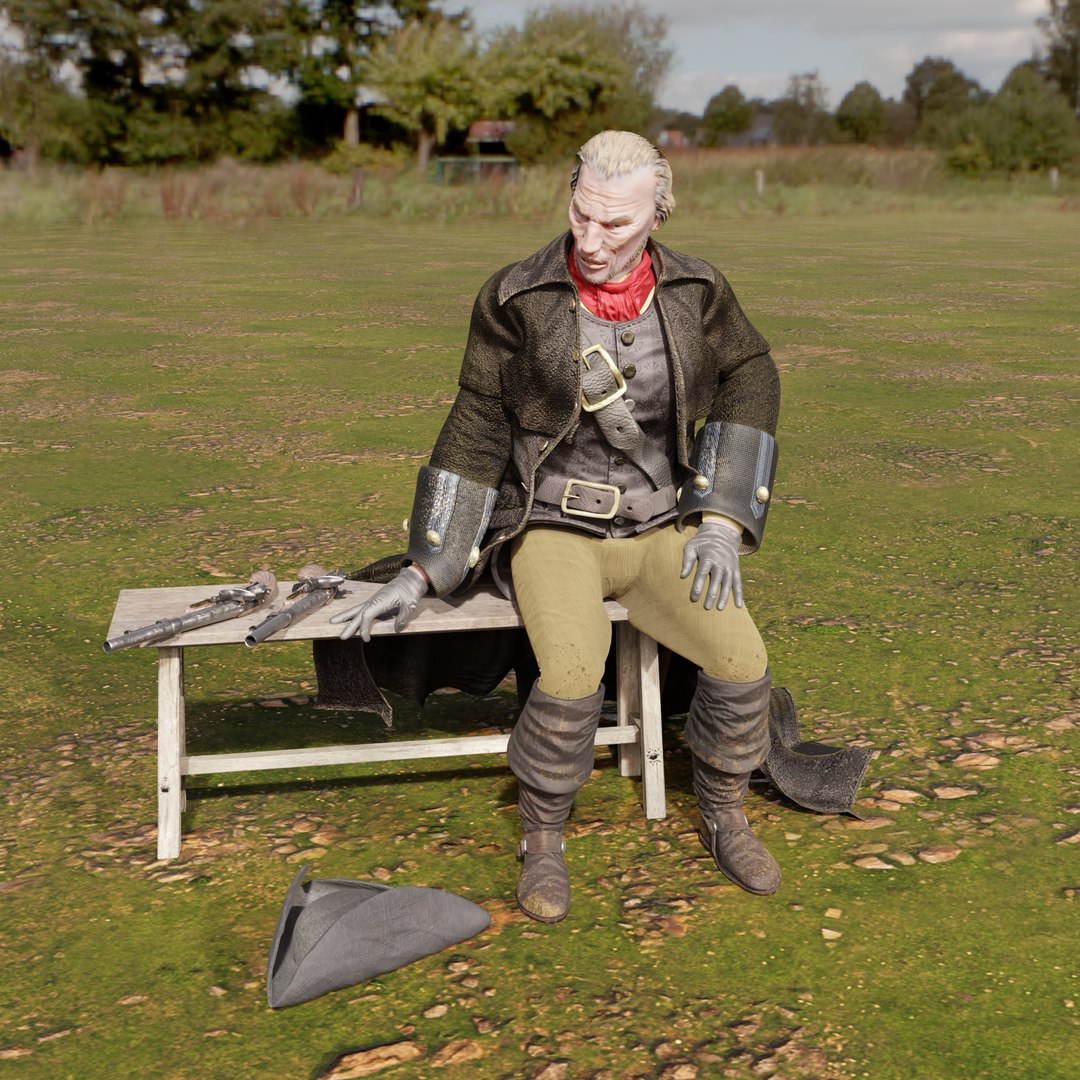
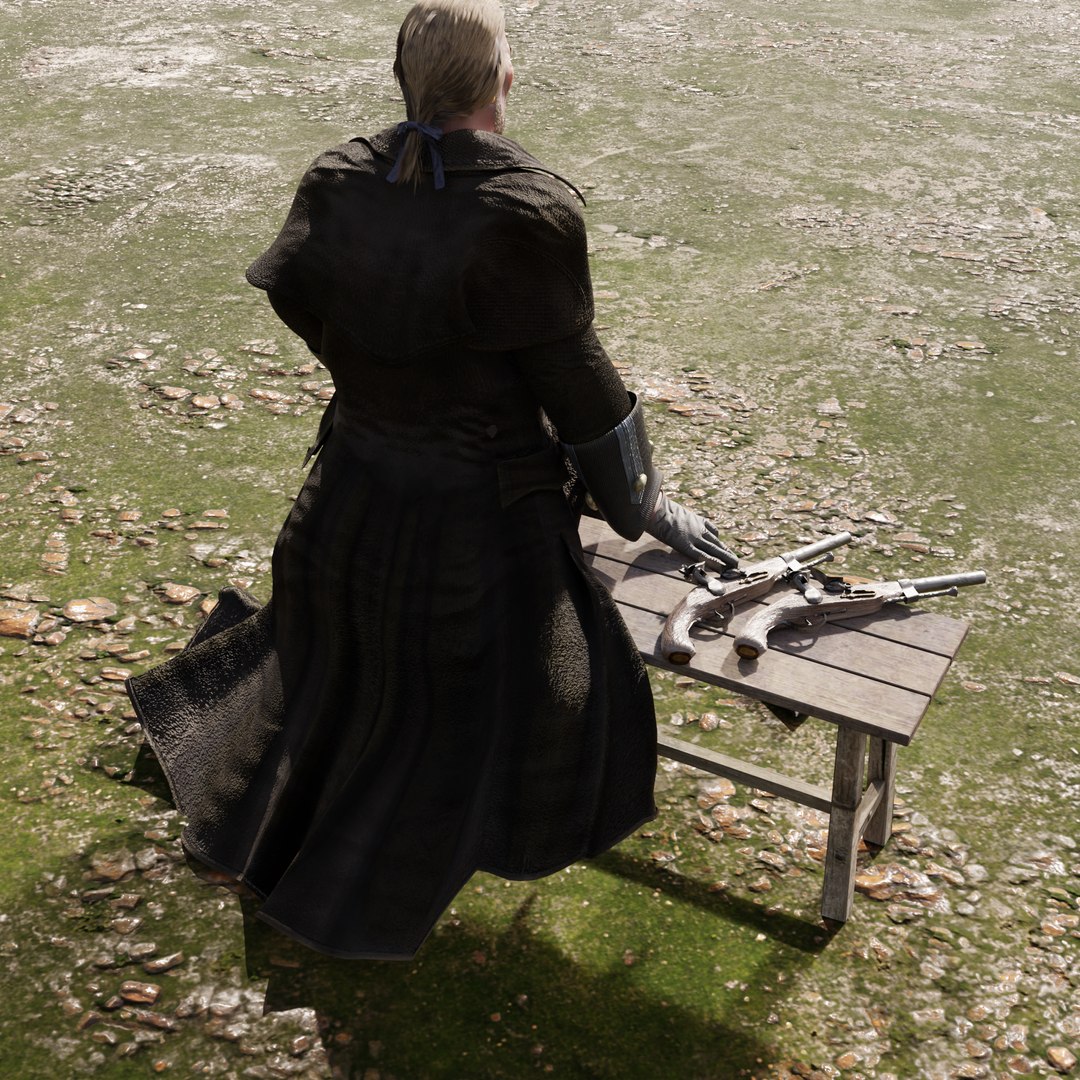
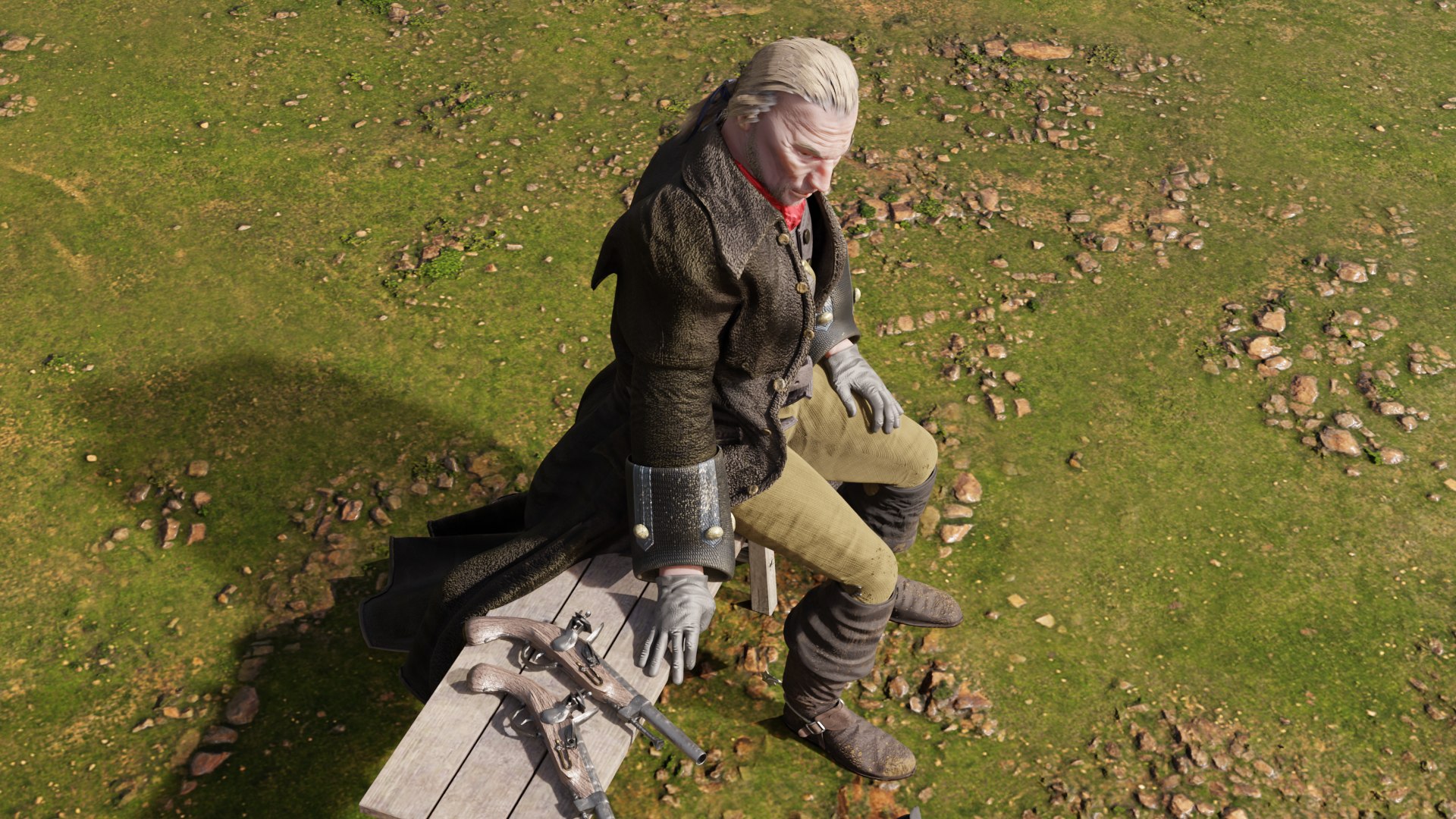
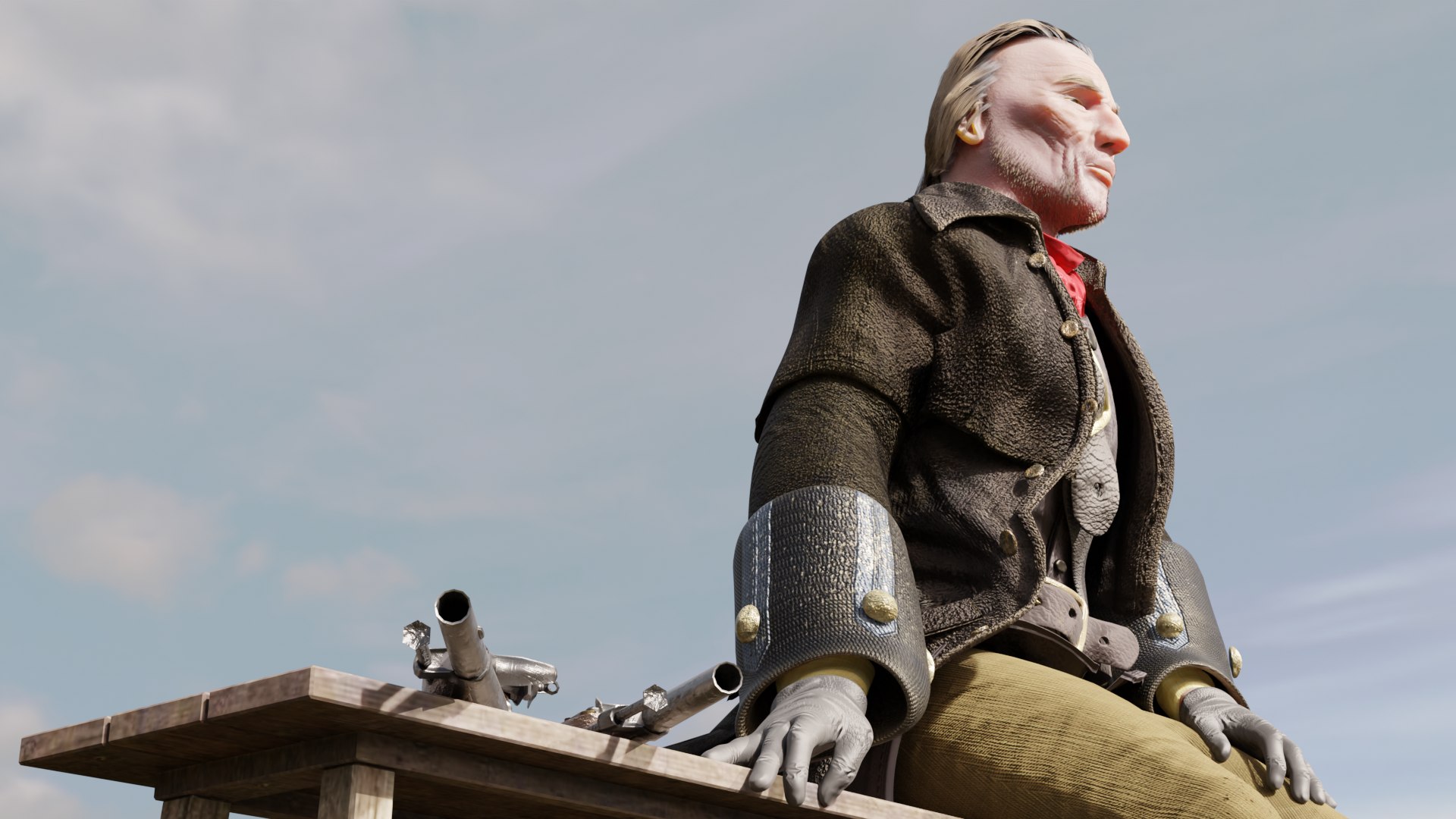
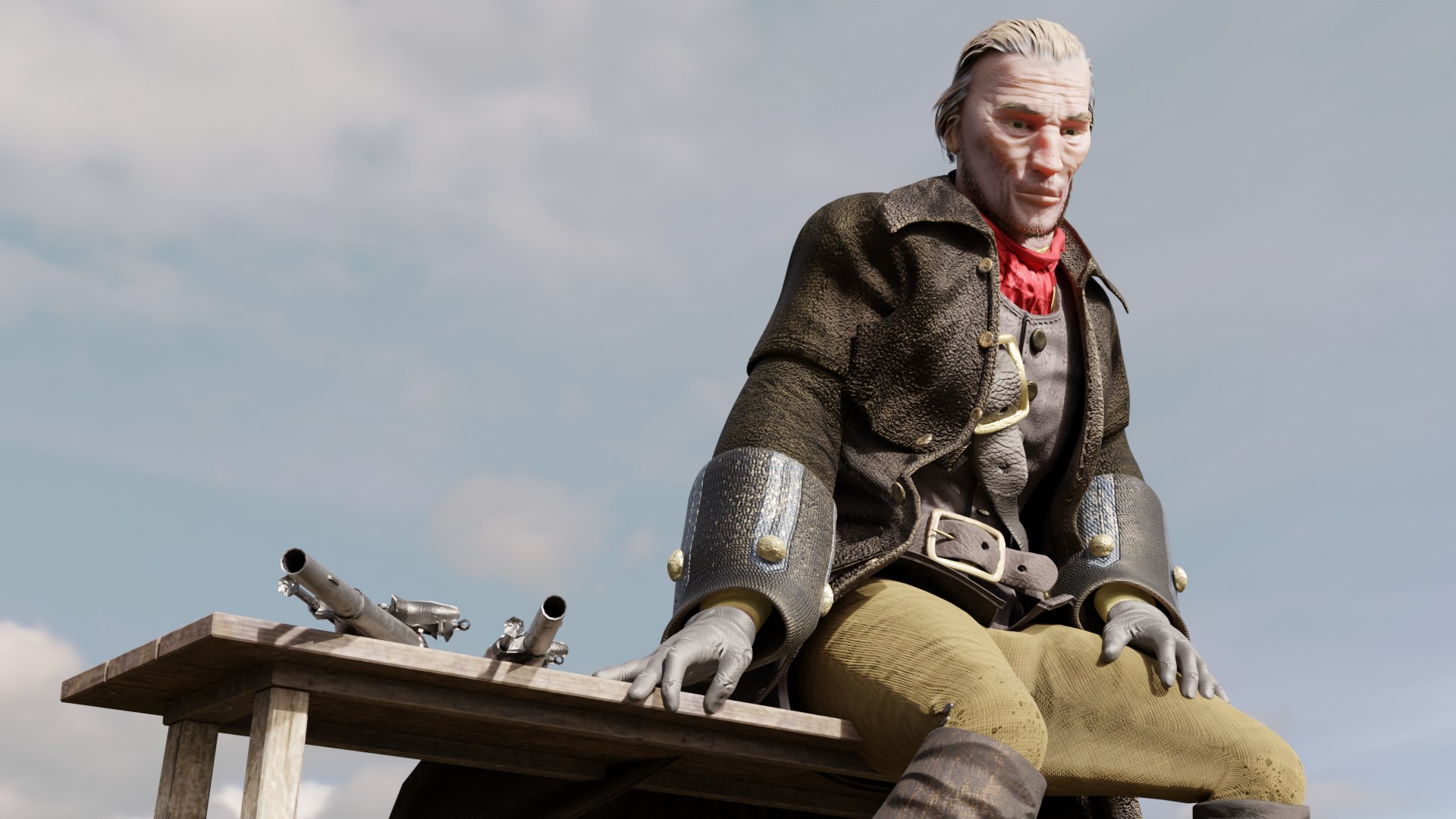
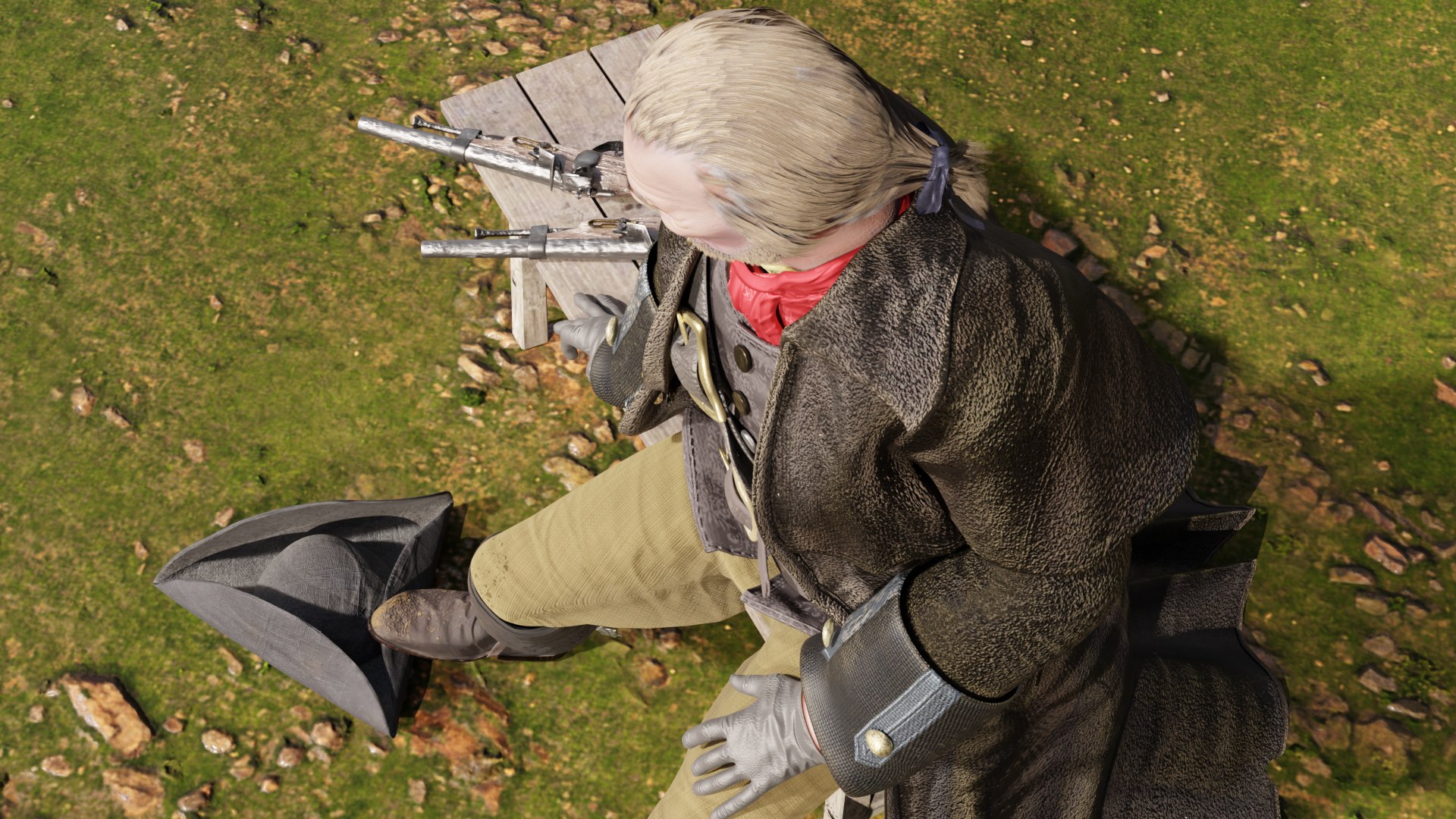
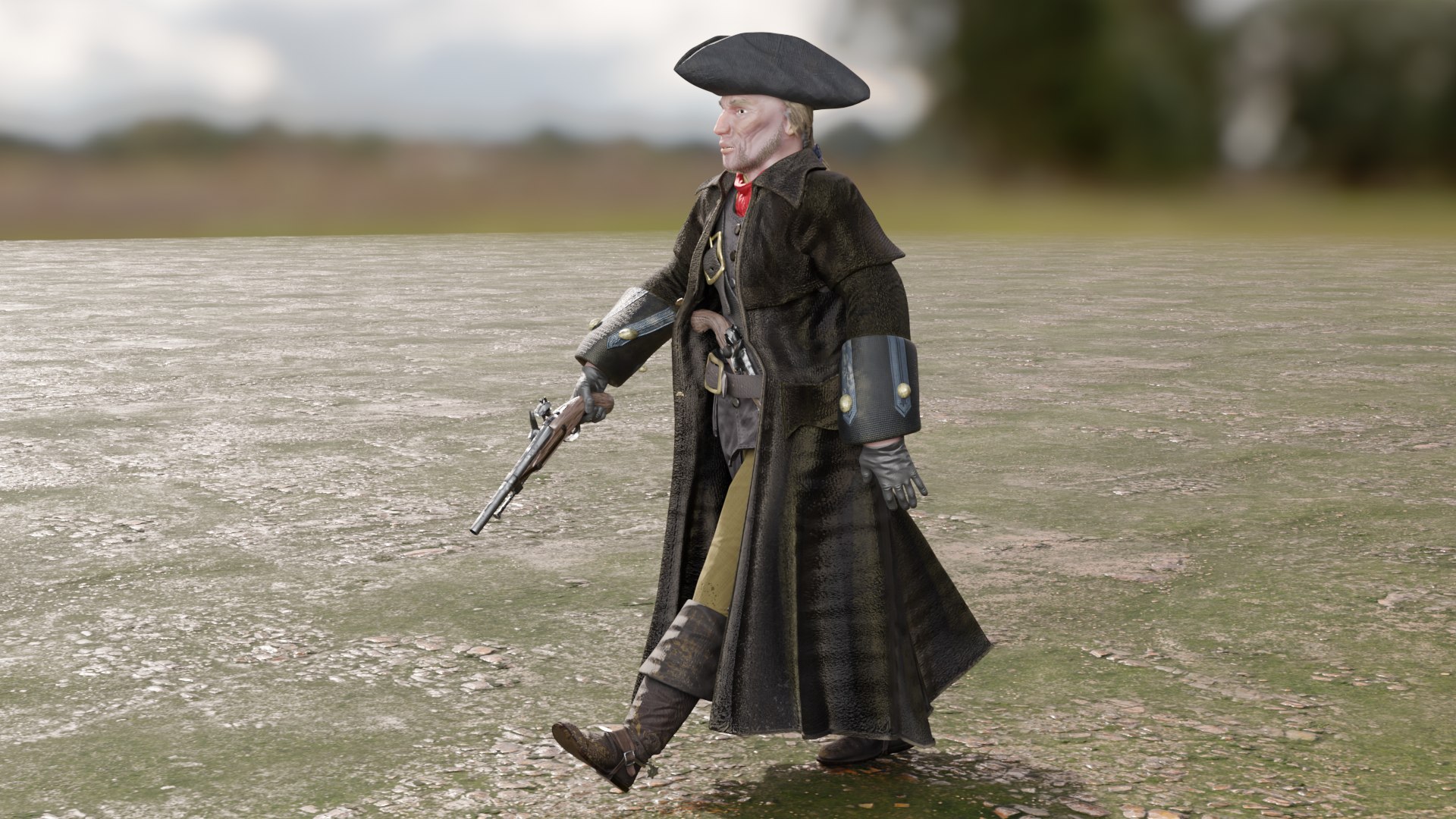
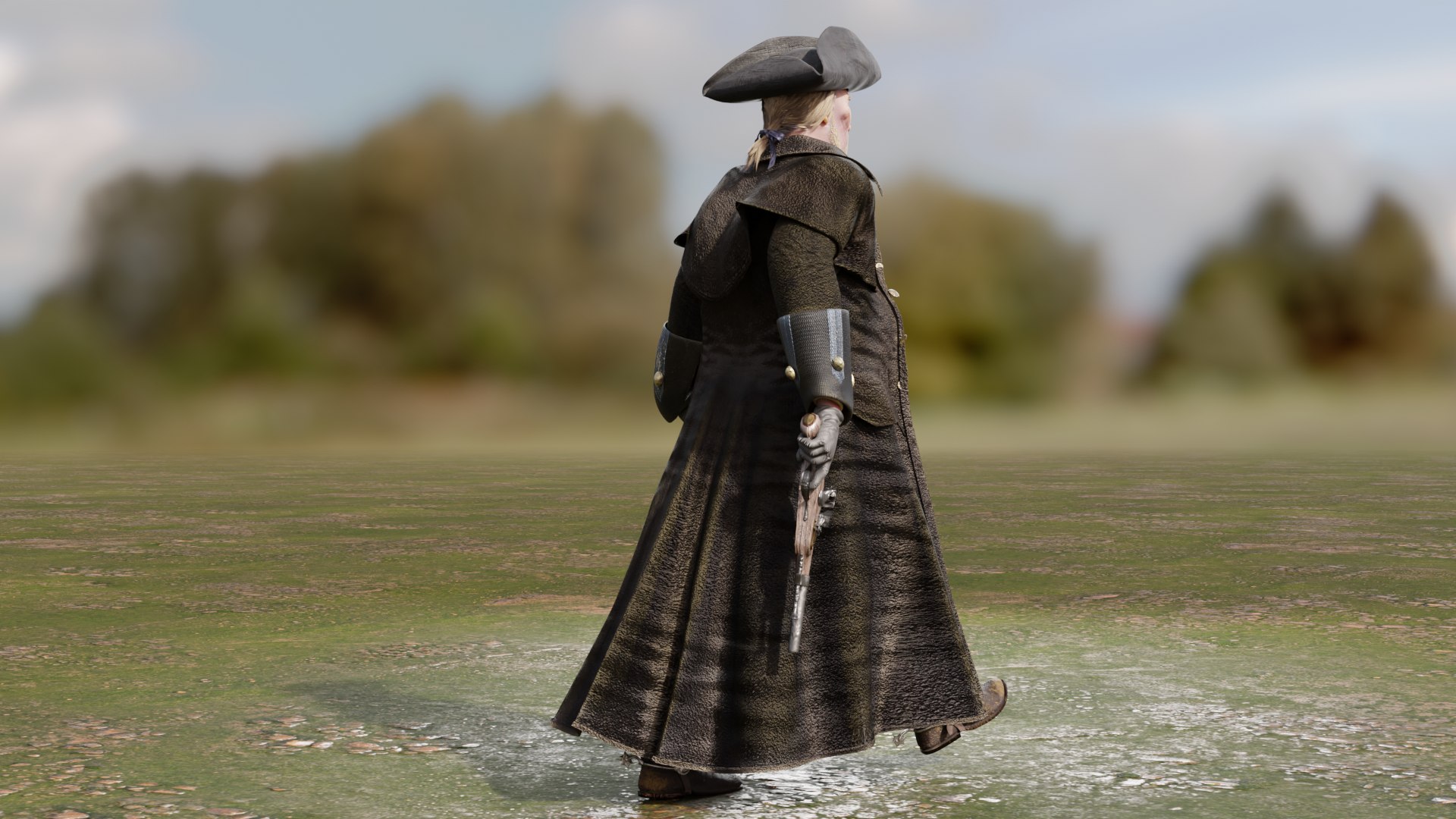
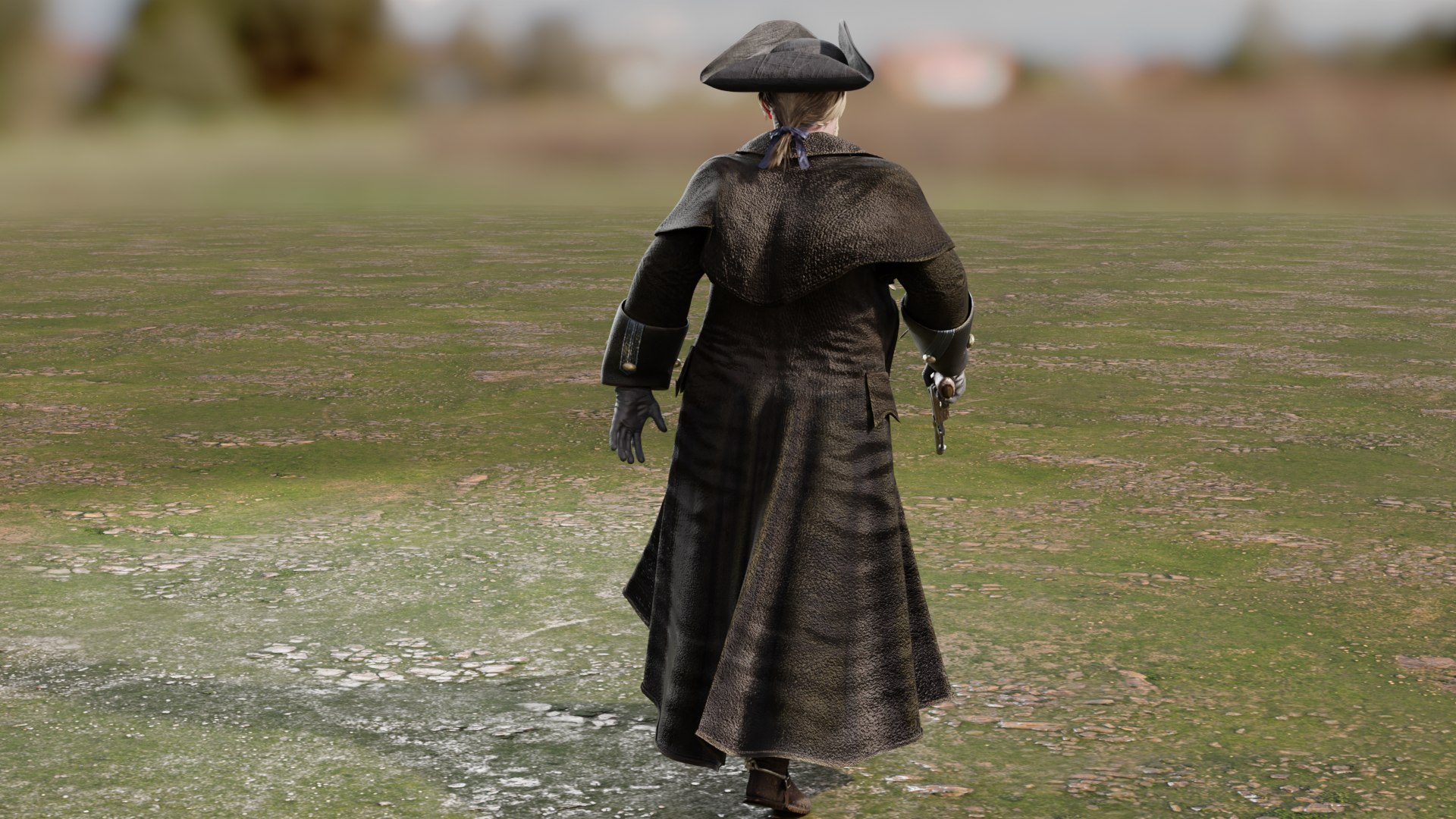
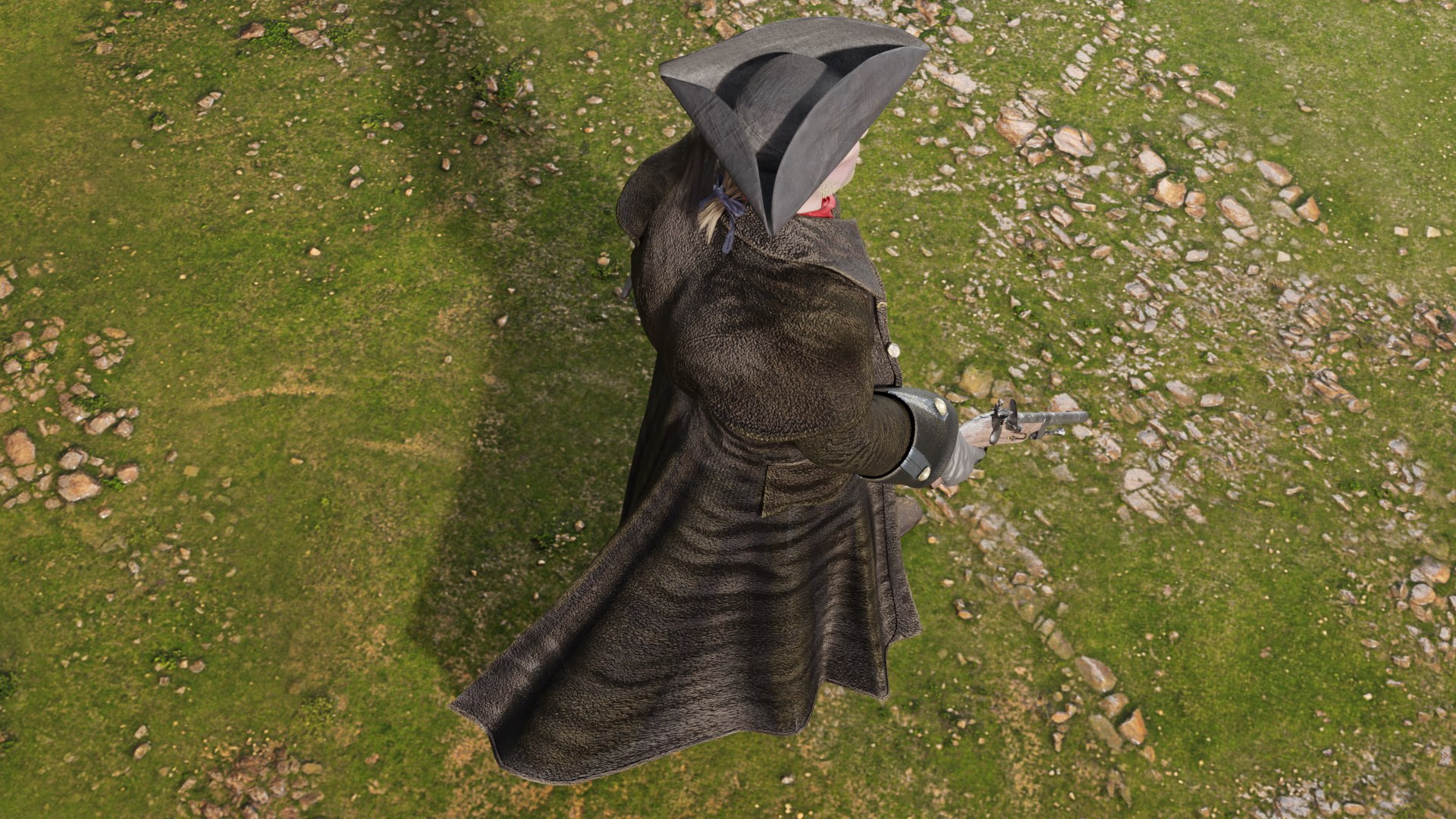
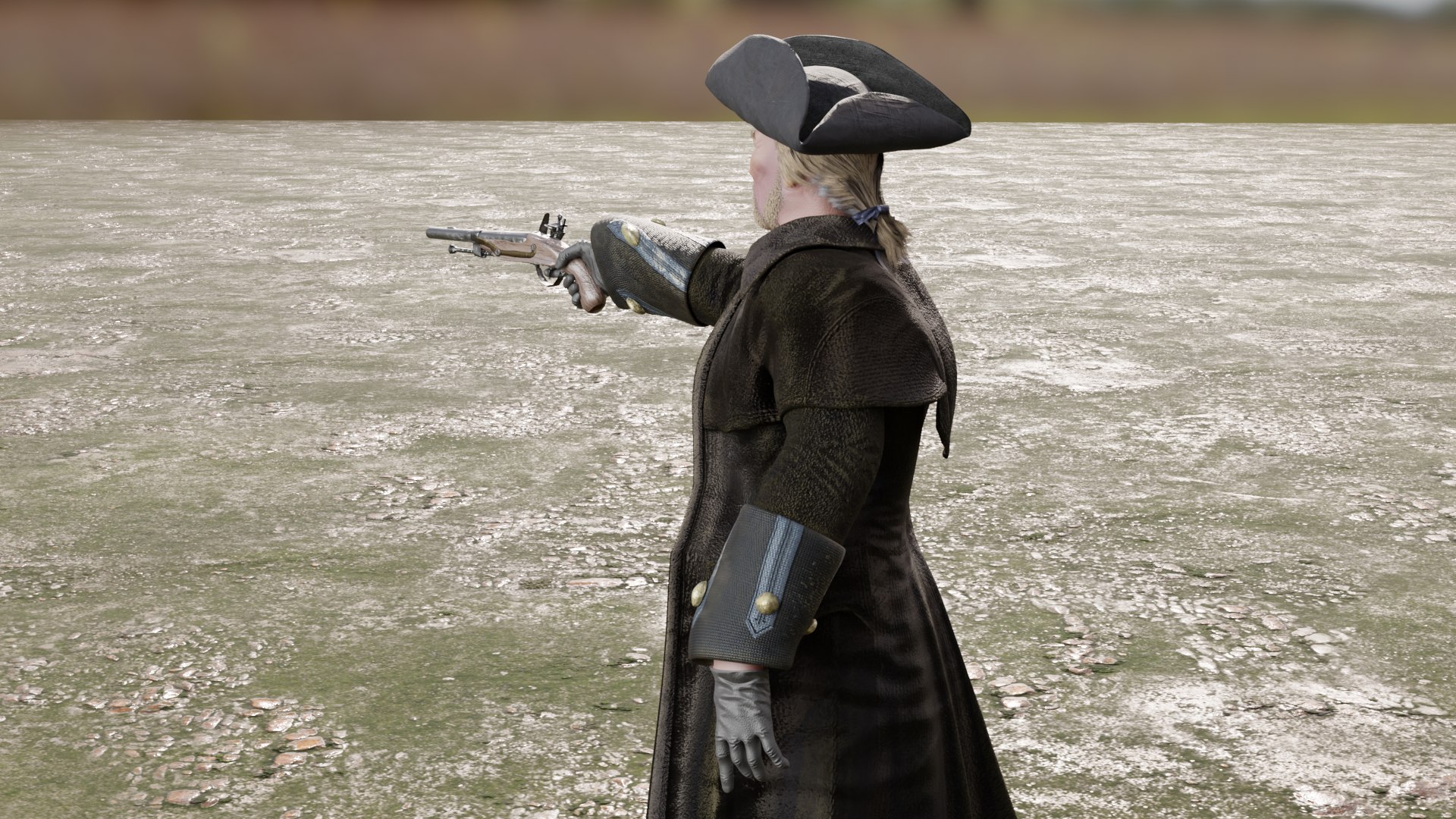
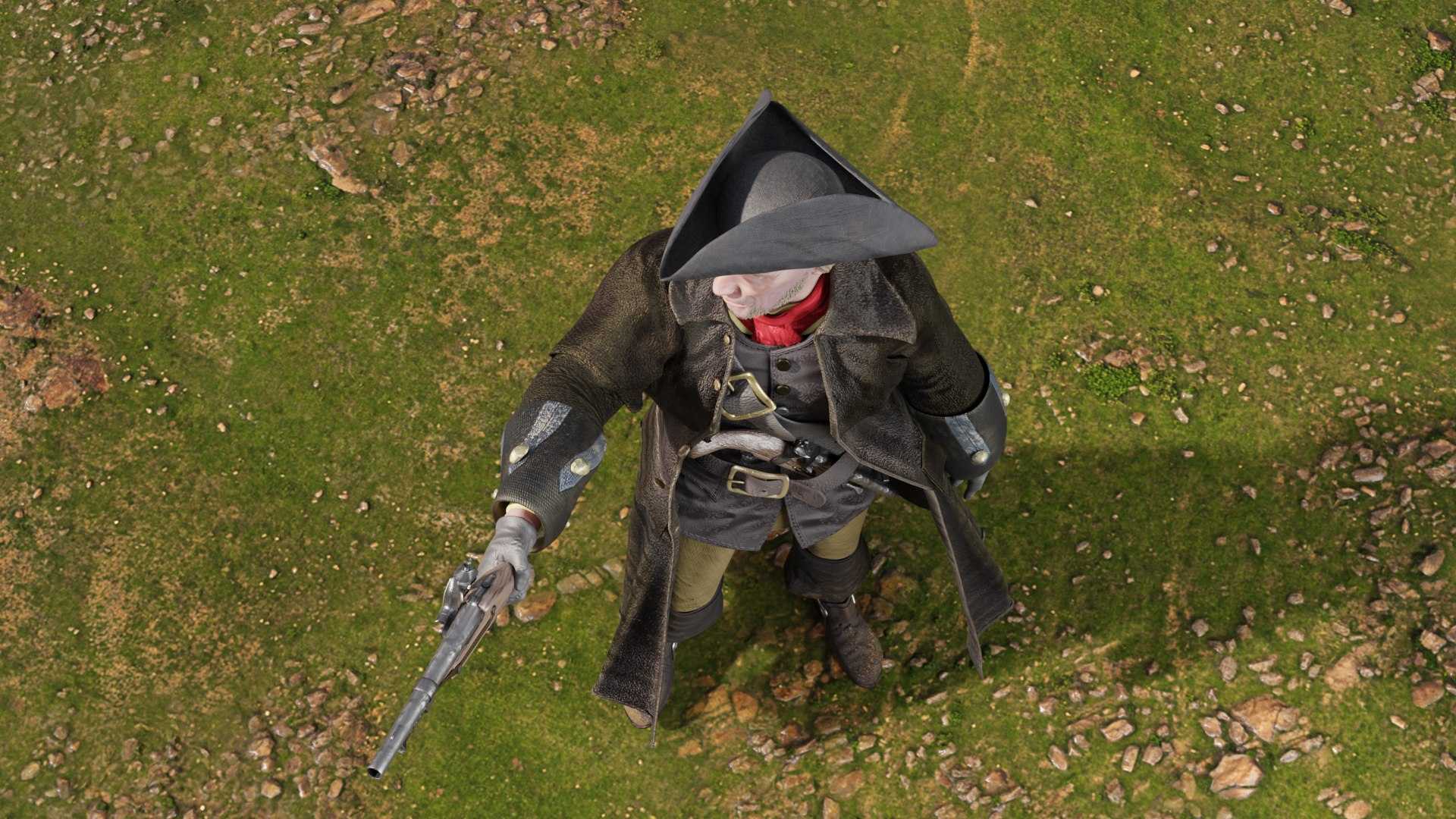
Highwayman - Rigged and Animated for Blender 4.23 and up
*********************
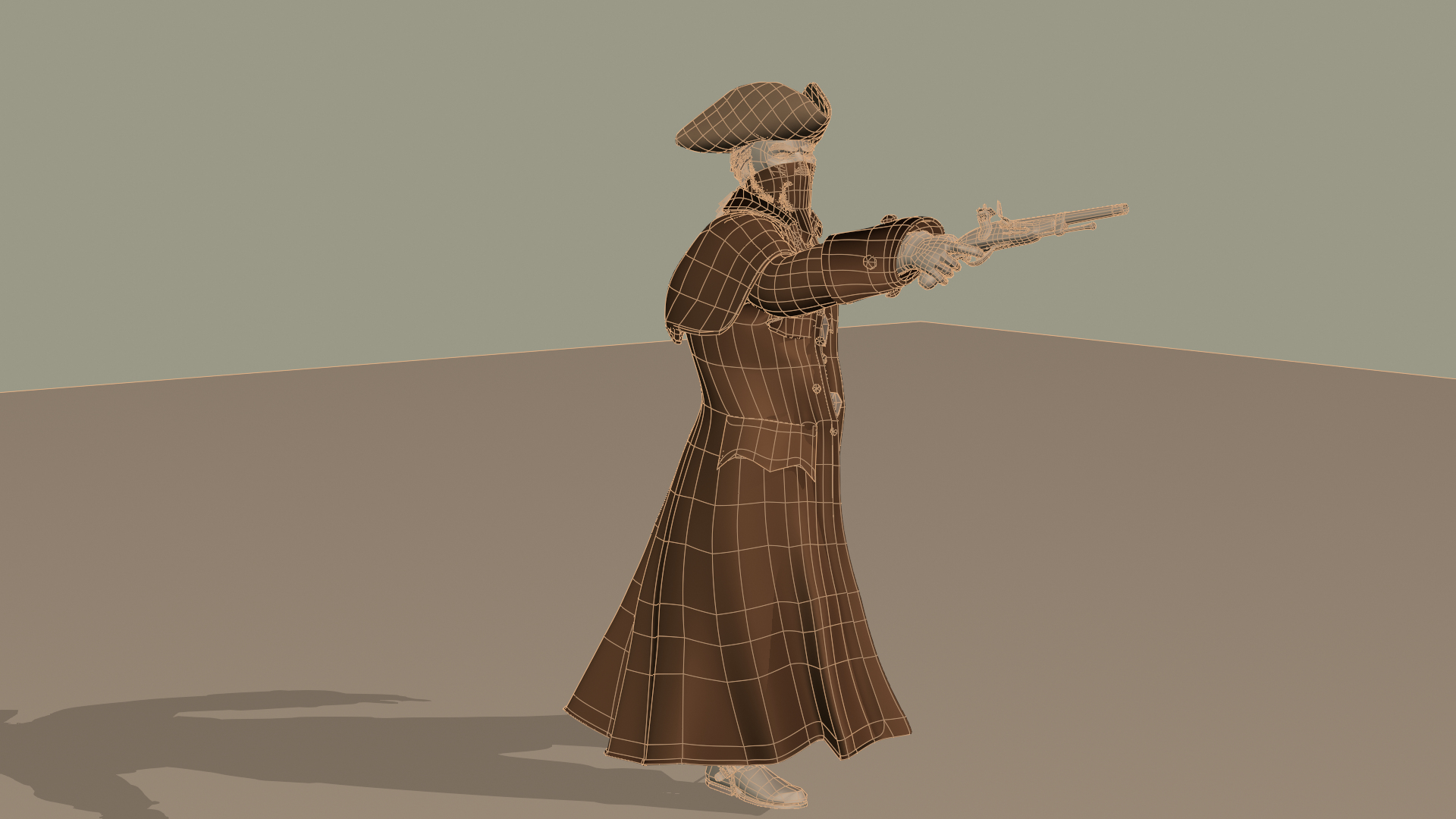
This model comes with several pre-animated scenes to get you started
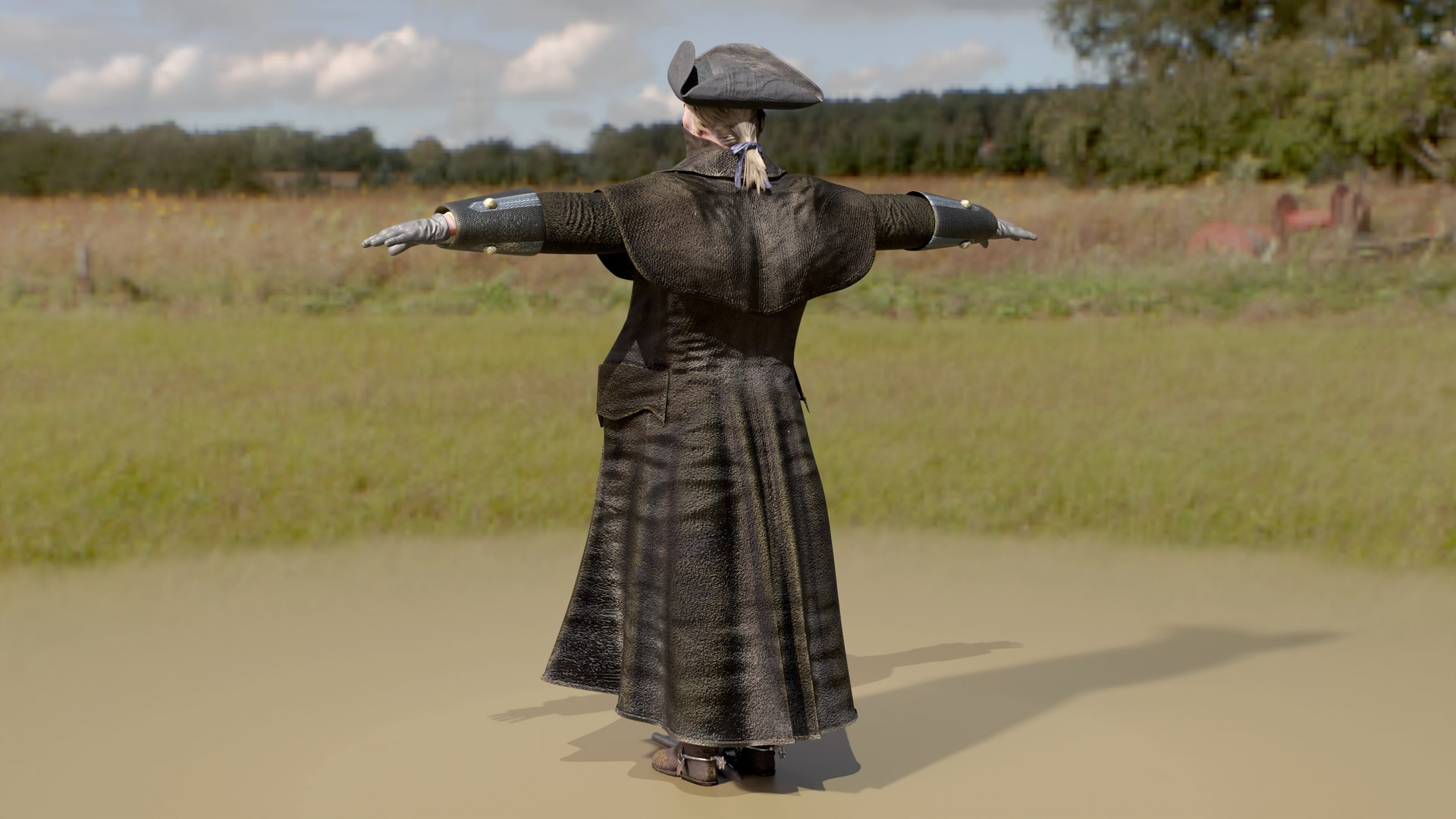
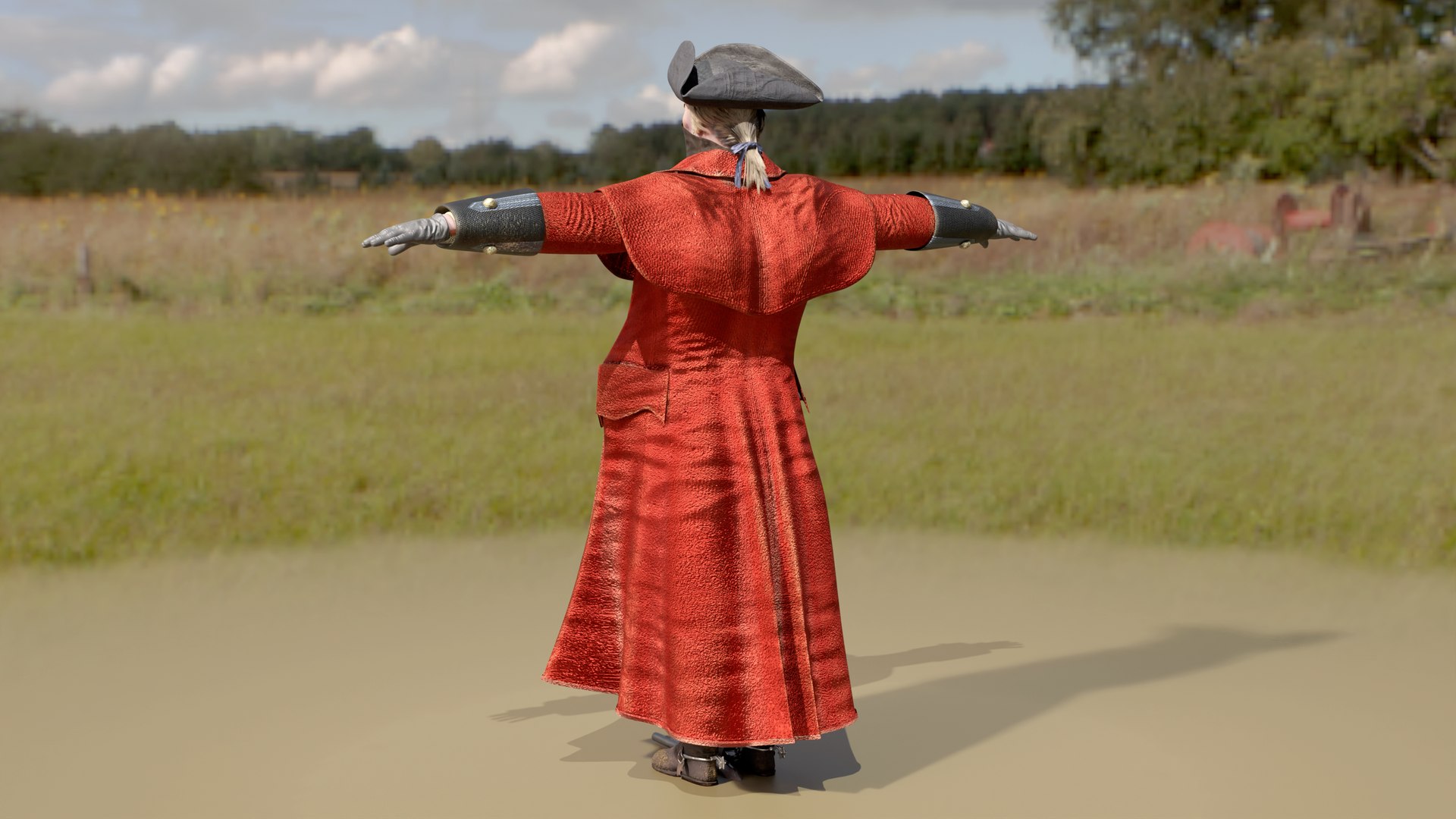
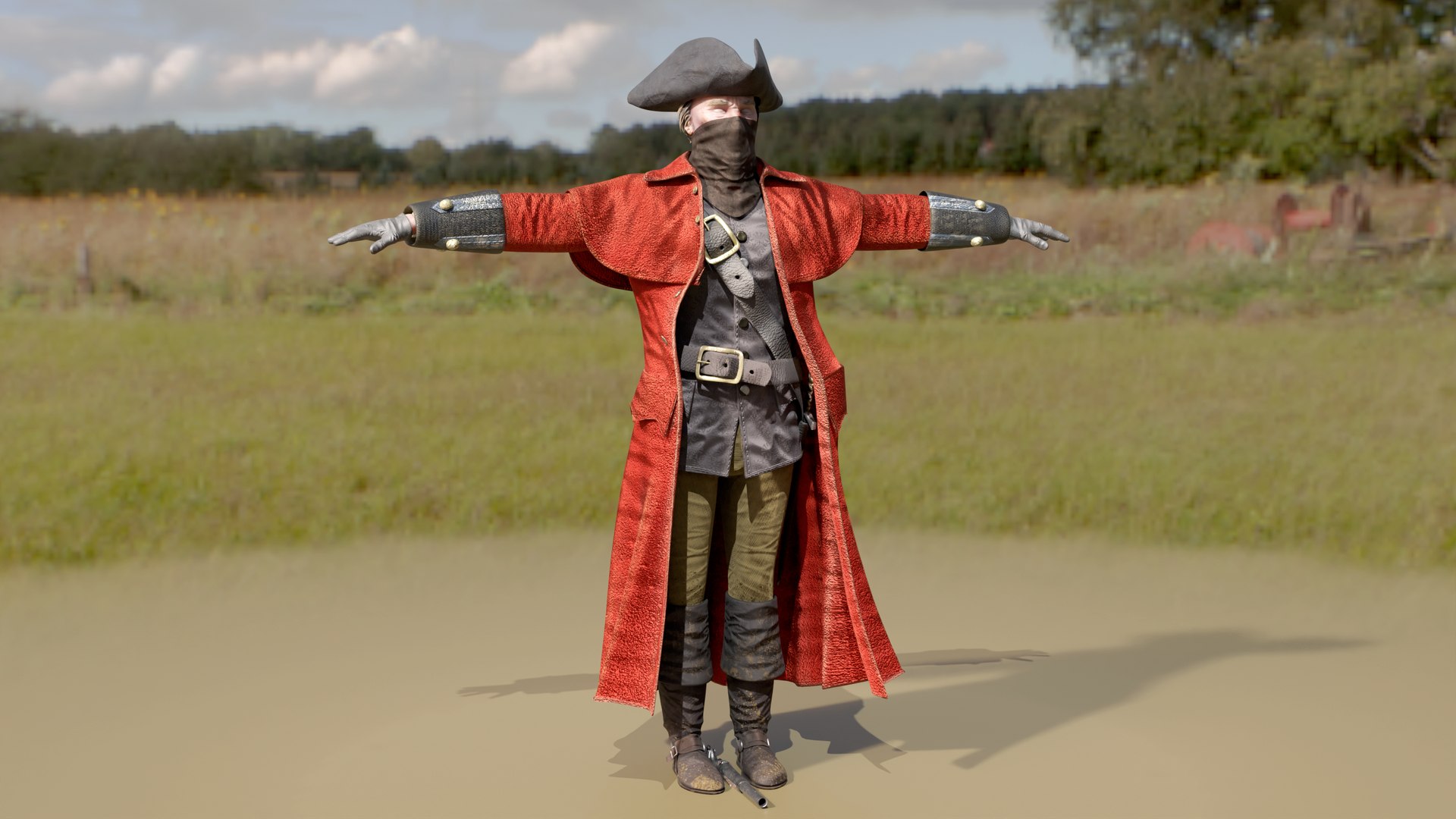
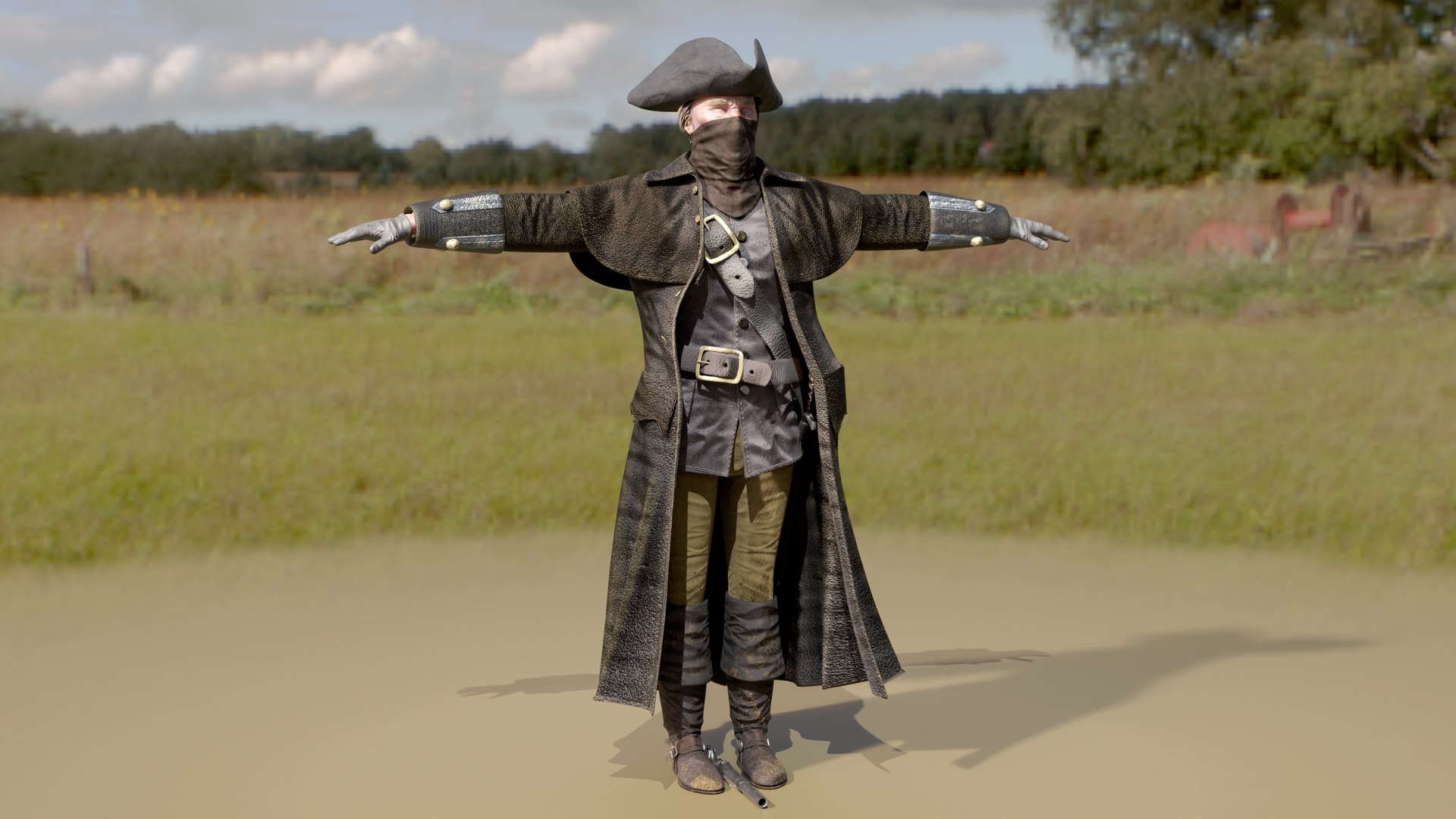
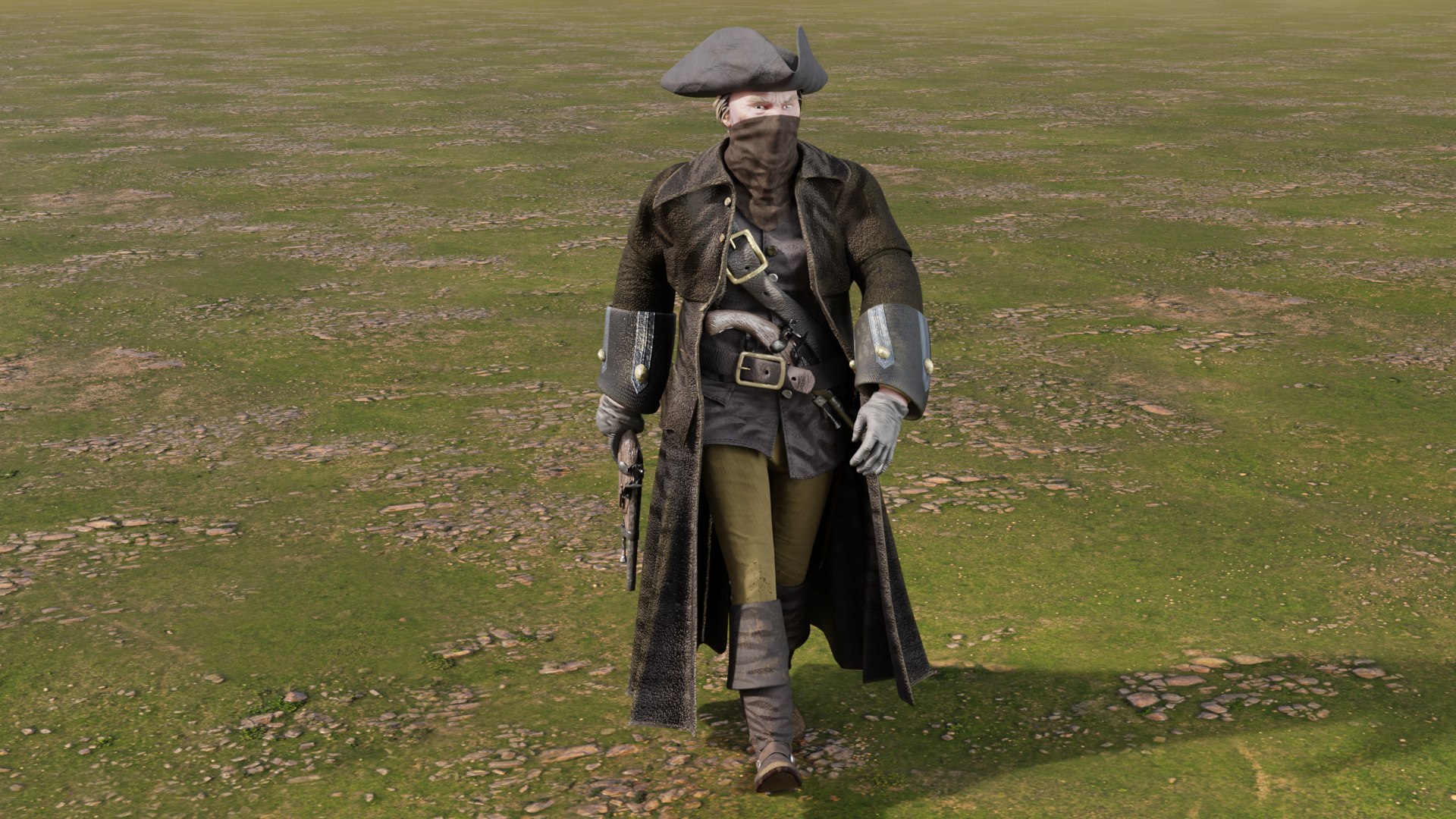
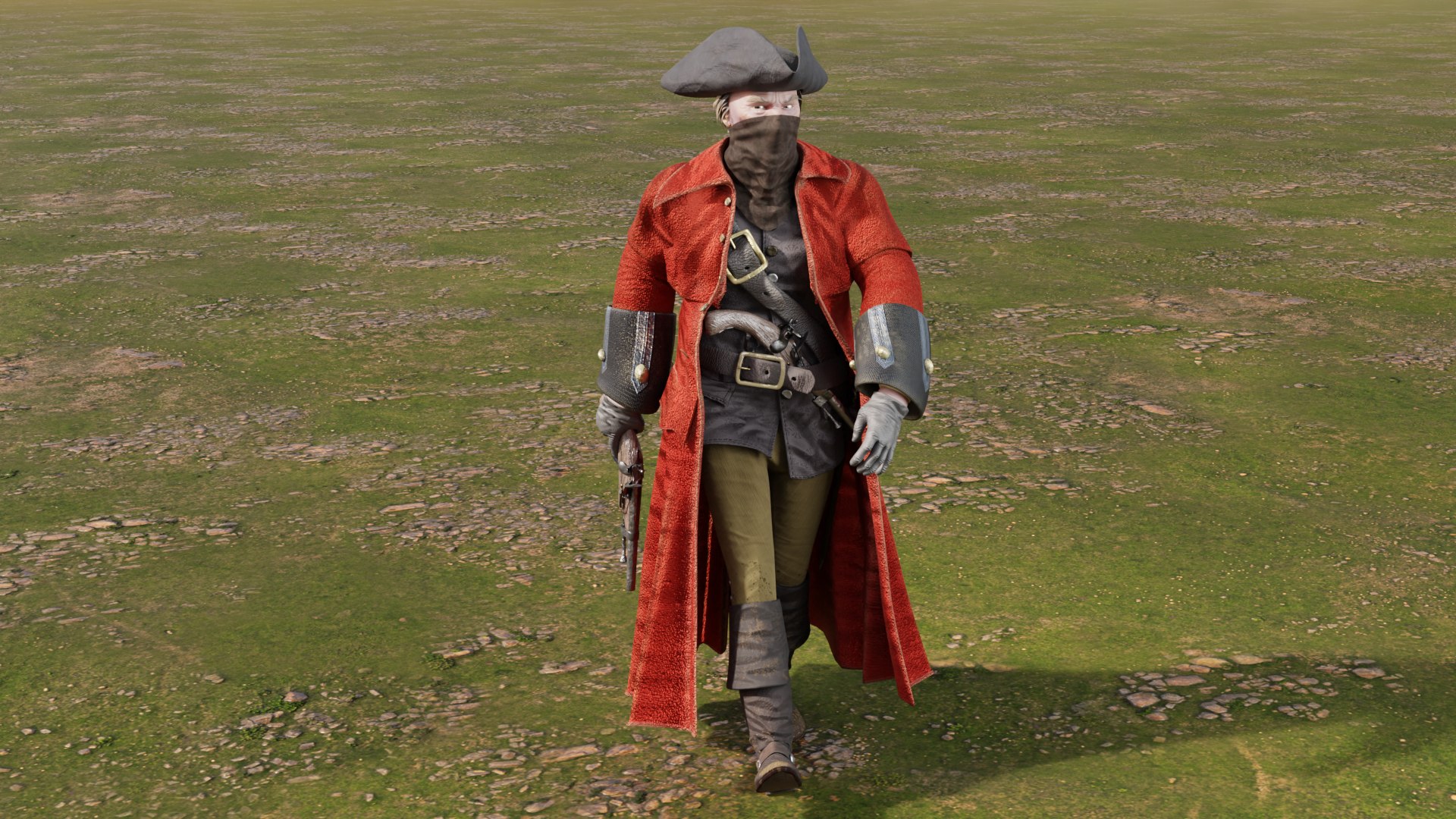
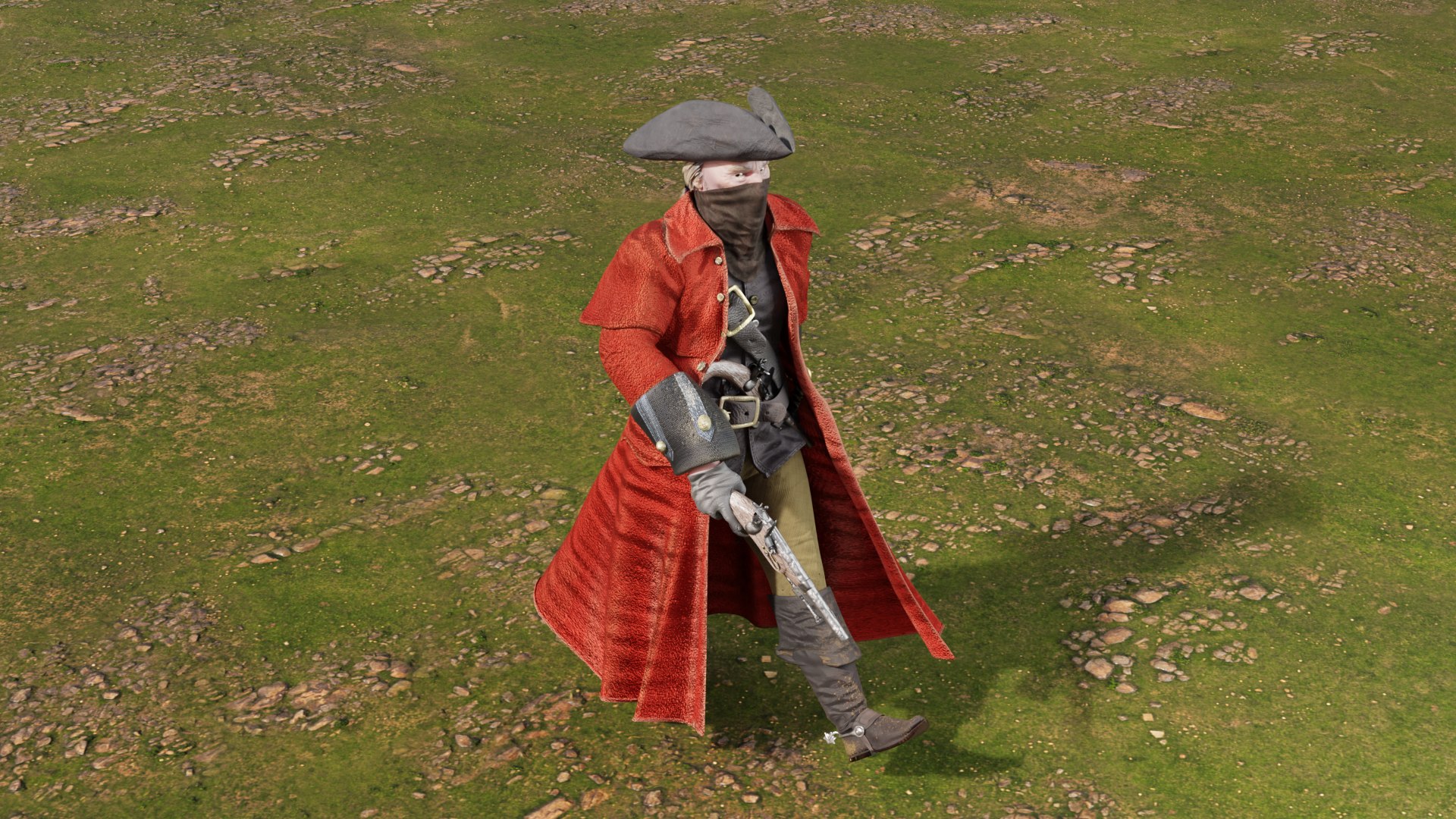
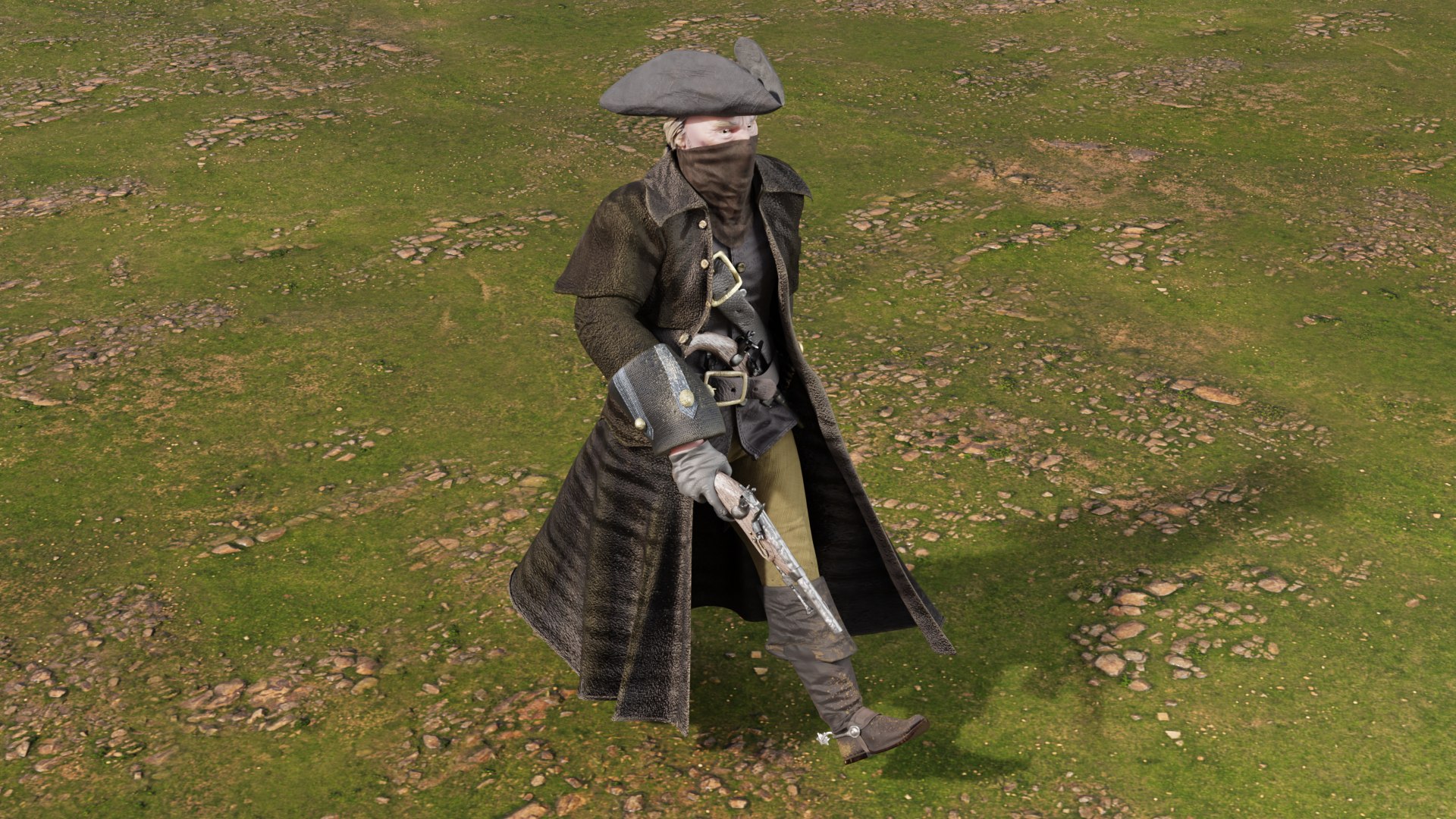
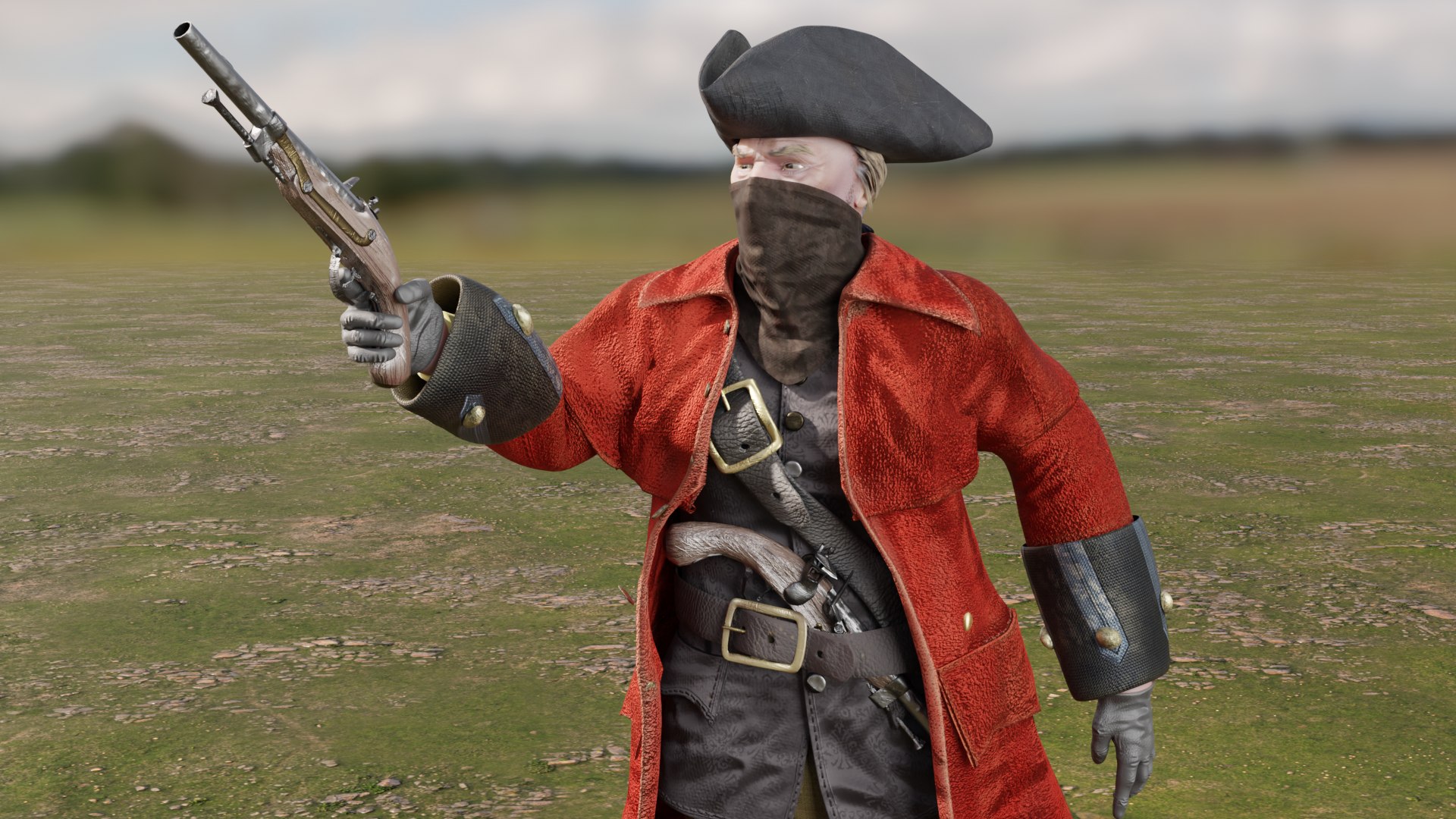
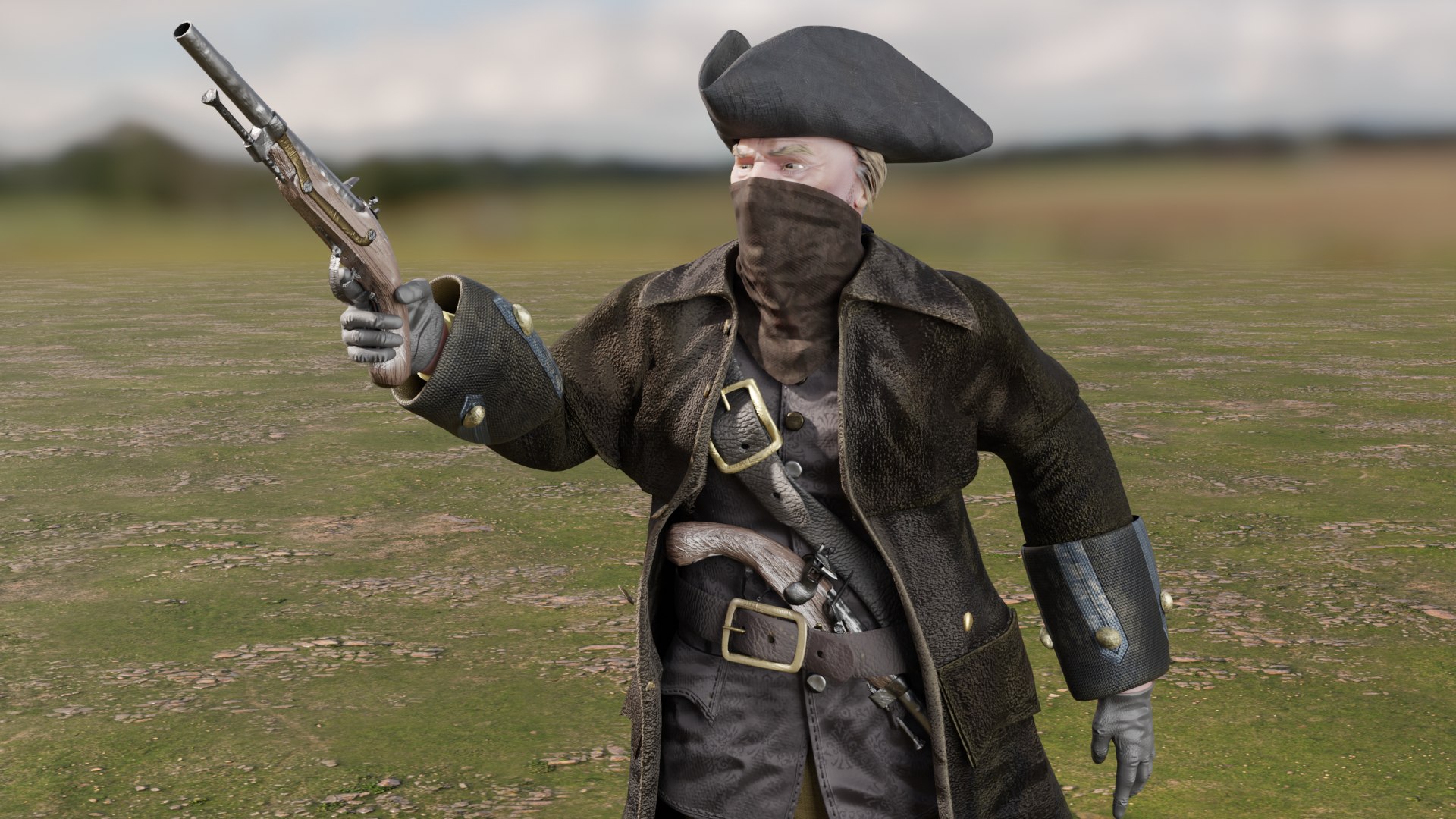
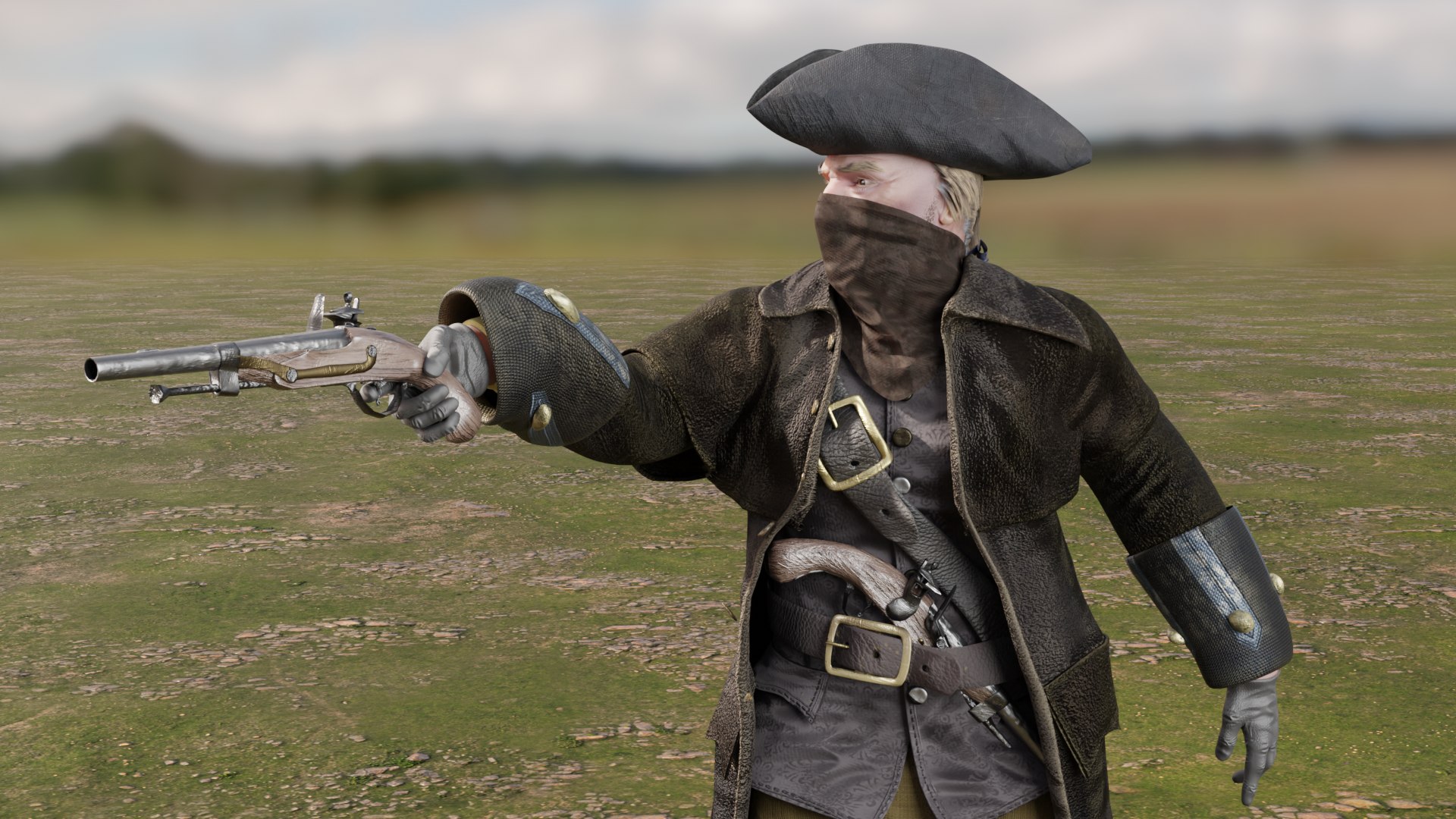
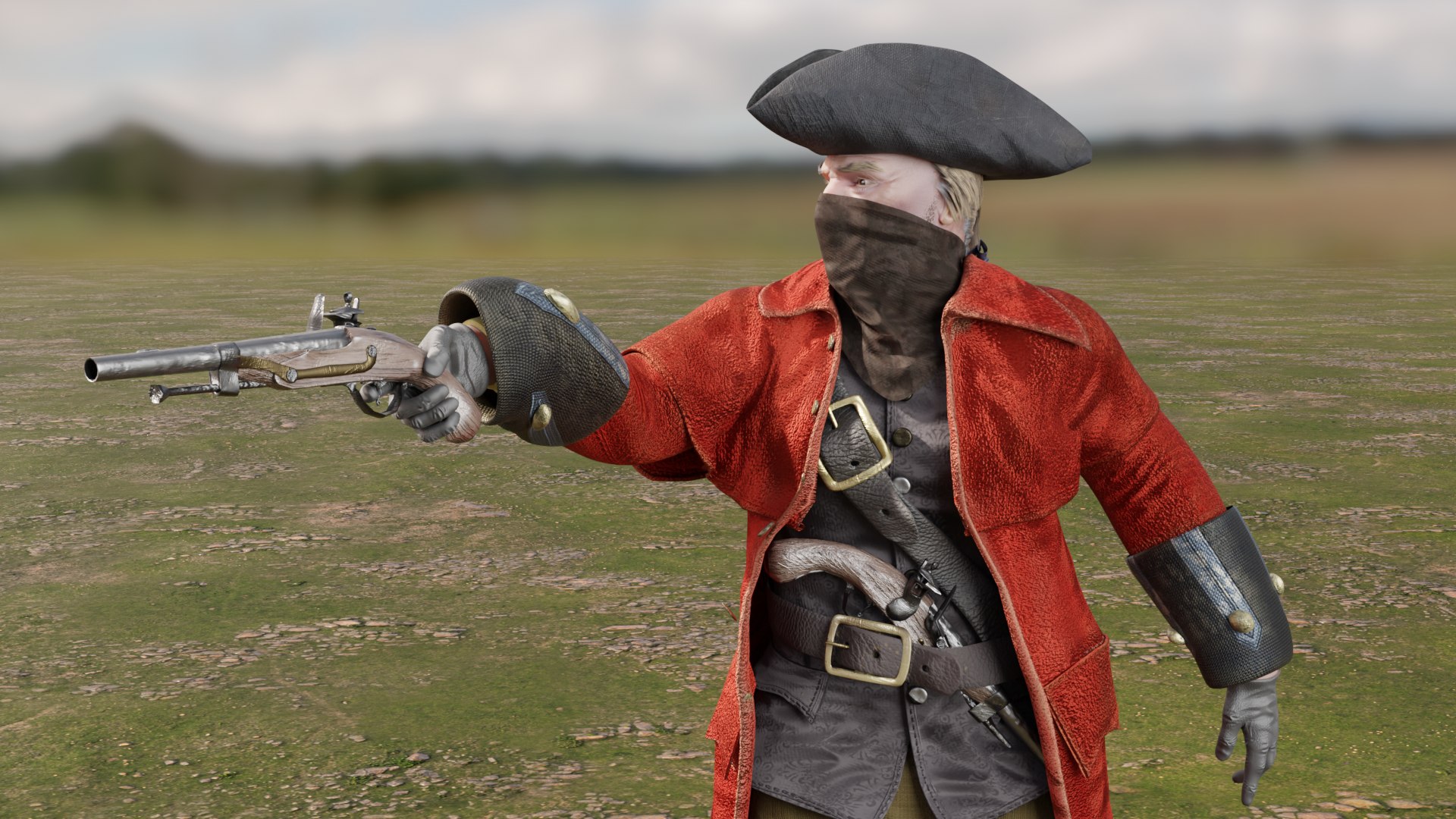
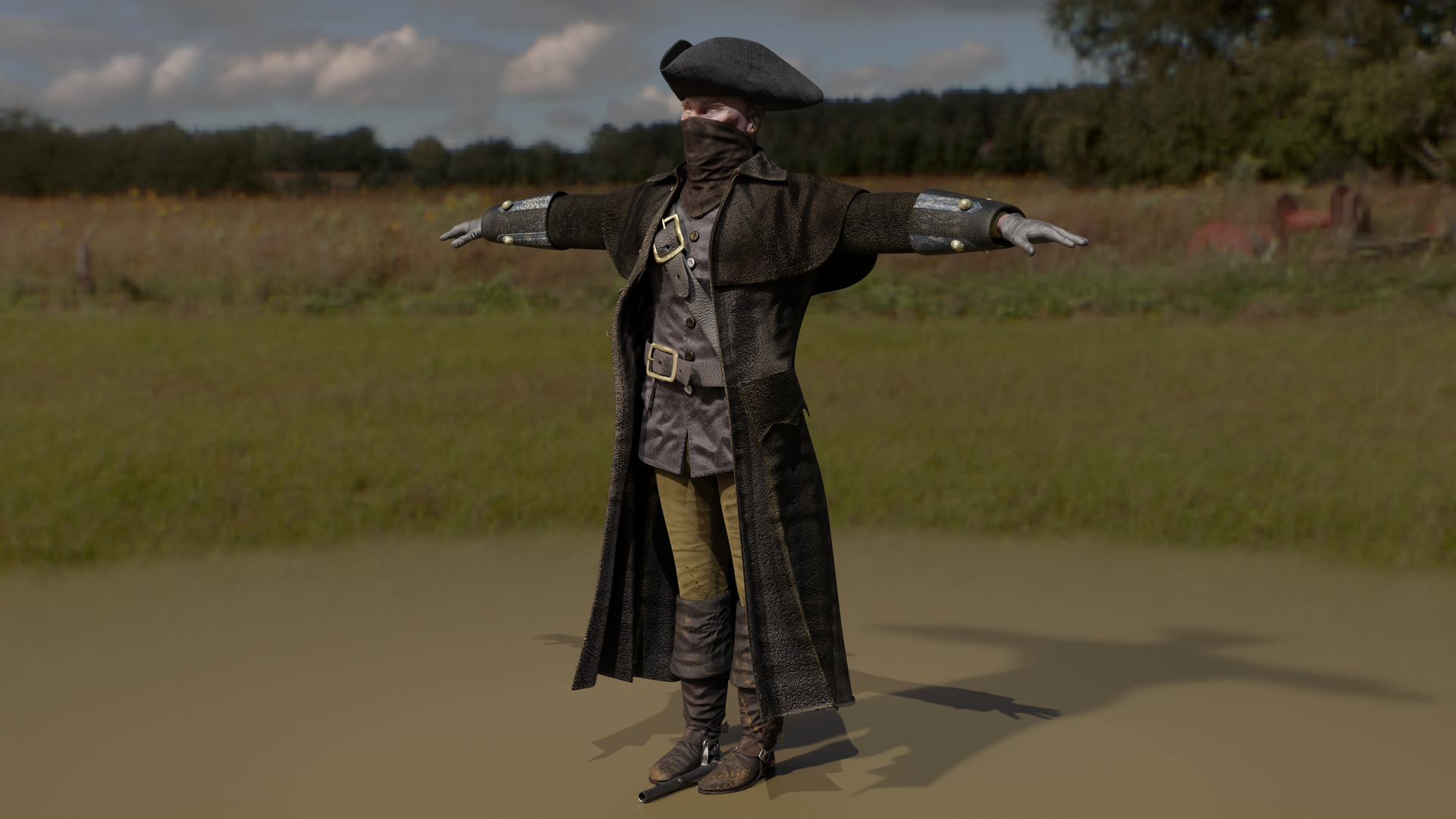
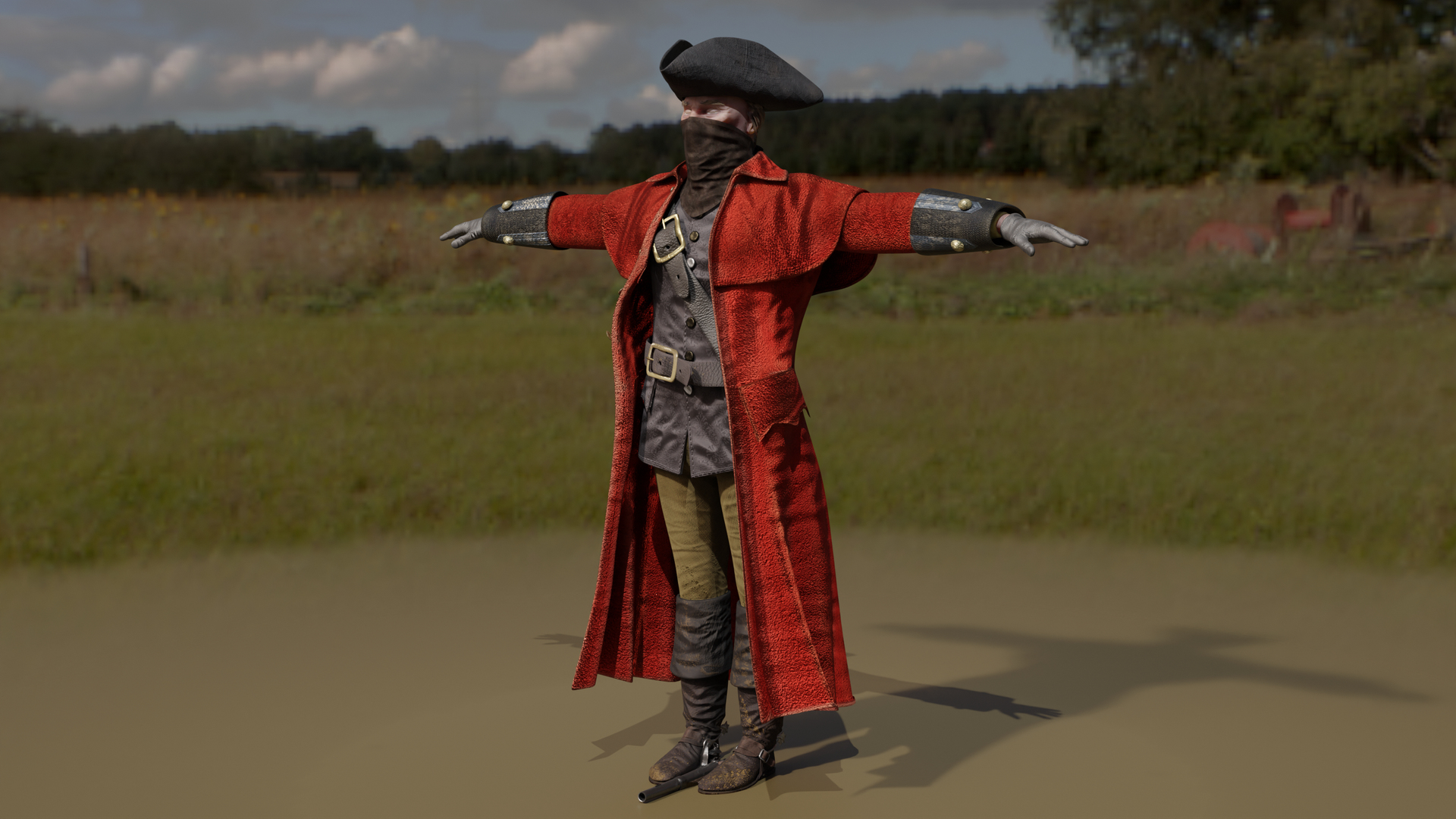
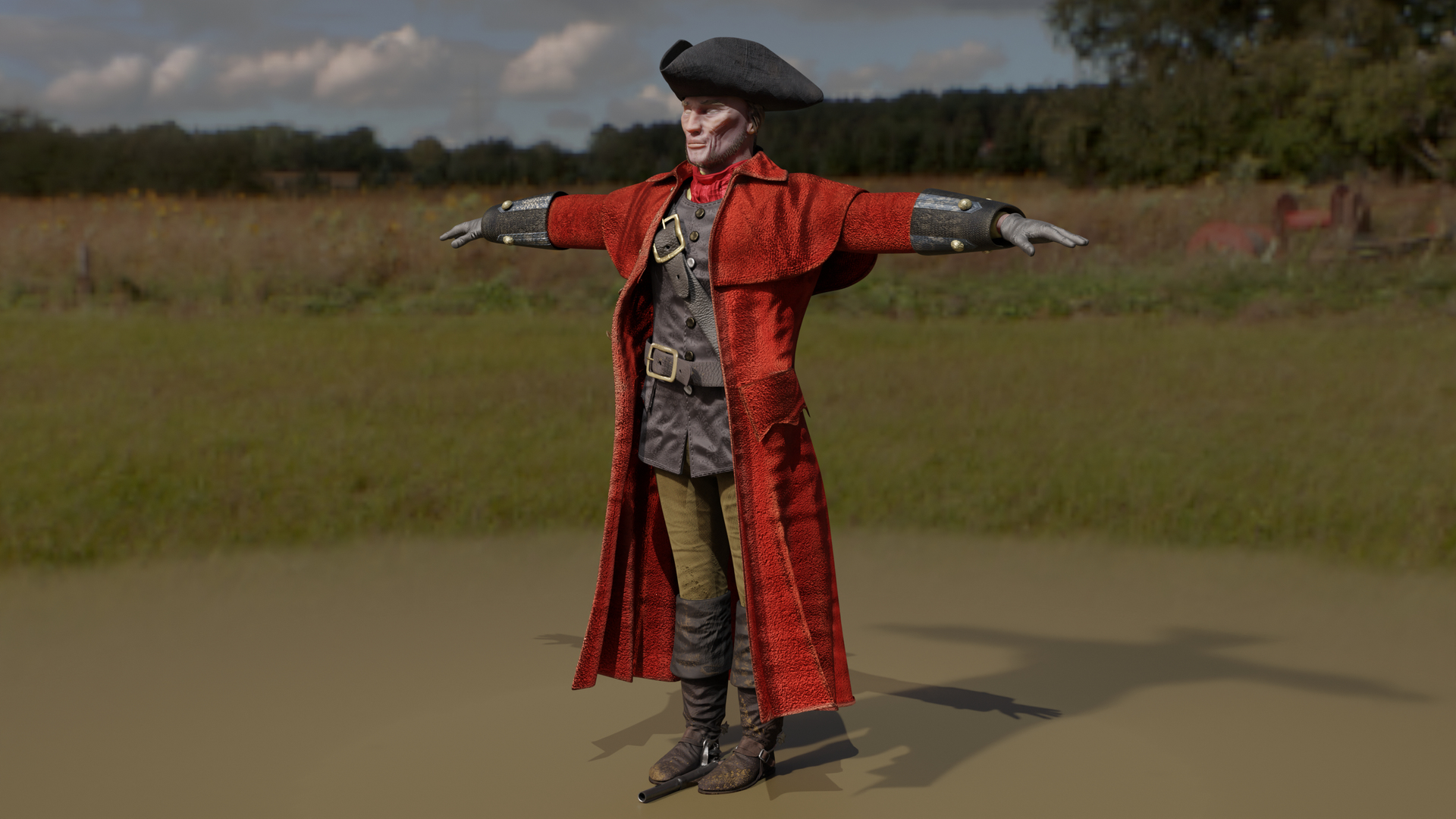
He has a Leather Cloak and a "Redcoat" Cloak:
00-HWYMN-Lthr-Zero.blend
00-HWYMN-RED-Zero.blend
01a-Hwymn5-WalkDeliver-NLA-Path-NoMask-Cam05-R.blend
01a-Hwymn5-WalkDeliver-NLA-Path-NoMask-Cam05.blend
01b-TT-HWYMN-RED-NoMask.blend
01b-TT-HWYMN-RED.blend
01b-TT-HWYMN.blend
02-HWYMN1-Deliver-R.blend
03-HWYMN2-Walk_In Place-R.blend
03-HWYMN2-Walk_In Place.blend
04-HWYMN6-Deliver_Stills-RED-wide.blend
04-HWYMN6-Deliver_Stills-wide.blend
05-HWYMN3-WalkDeliver-NLA-R.blend
05-HWYMN4-WalkDeliver-NLA.blend
05-Hwymn5-WalkDeliver-NLA-Path-Cam04-R.blend
05-Hwymn5-WalkDeliver-NLA-Path-Cam04.blend
06-Hwymn-SITTING.blend
- 00-HWYMN-Lthr-Zero and HWYMN-RED-Zero - Are the basic Rigged but non animated set up scene
-----------------------
It is built with Blender's Rigify.
- First go to the N Panel (press N on the keyboard)
- Select the ITEM tab
- Be sure that the RIG LAYERS section is showing your rig controllers (in Blue)
- To move the hands select the shape over the hand and drag or rotate - dragging toward the body will cause the arm to bend at the elbow.
- In the same way grab the similar shape at the foot to move the foot and bend the knee.
- To move fingers - select one of the stright lines comming off of the fingers and hit “S” for “Scale” it will rotate the 3 finger joints at once - you can also select ant knuckle and rotate a single finger joint.
- The large circle with arrows at the base of the model moves the entire object
- Grab the Gear shape (or arrows) at the shoulder torotate the elbow
- The arrows at the thighs rotate the knee
-THe big box at the waist will lift the model or make it bend at the knees and twist at the waist
- The 3 purple discs in the torso can twist the torso
- The bent disc at the shoulder will rotate the shoulders and upper body
- small arrows and disc at the heel will raise just the heel off of the ground
- The disc at the toes will raise the toe
- The disc at the neck will rotate the neck area
- The disc above the head will rotate the head
- The coat has it's own set of controlling discs.
That should get you started.
-----------------------
Use Eye morphs to control eye
There are 49 Morph targets:
0-FV, 0-LT, 0-MBP, 0-O, 0-U, 0-WQ
CheeksPuffed, Eyebrow-Arch-LT, Eyebrow-Arch-RT, Eyebrow-DN-LT, Eyebrow-DN-RT, Eyebrows-DN-Both, Eyebrows-IN-Both, Eyes-Open-Wide, Eyes-Open, Eyes-DN, Eyes-LT, Eyes-RT, Eyes-Up, Jaw-Back, Jaw-DN, Jaw-Forward, Jaw-LT, Jaw-RotateZ-LT, Mouth-RotateZ-RT, Jaw-RT, Lip-Lower-In, Mask-Extend-Left, Mask-Extend-Right, MidMouth-LT, MidMouth-RT, Mouth-DN, Mouth-Frown, Mouth-Open, Mouth-Pucker, Mouth-Whistle, Nose-Scrunch, Smile, Snarl-LT, Snarl-RT, Squint, UpperLip-IN, UpperLip-OUT, z-Cape-With-Sword, z-Pistol-Tucked
But if you have positioned the model by moving the bones, AND you try to use some morph targets, you may have some pretty weird distortions that will freak you out.
Don't panic, the solution is to 'zero' out your bone positions, as or just before you apply the 'Morph' targets.
------------------------
See Readme for more details