
Prop and Rotor Blur Kit

Free

Formats (7)
Maya
3ds Max
OBJ
Softimage
Cinema 4D
Lightwave
3D Studio
Specifications
Publish Date April 11, 2009
Product ID 457216
Polygons 100
Vertices 100
Polygonal
Textures
Materials
Unknown Unwrapped UVs
TurboSquid Exclusive
member avatar
PerspectX
805 Products | Contributor Since 2003
Have questions? Chat with us now.

Description

Description

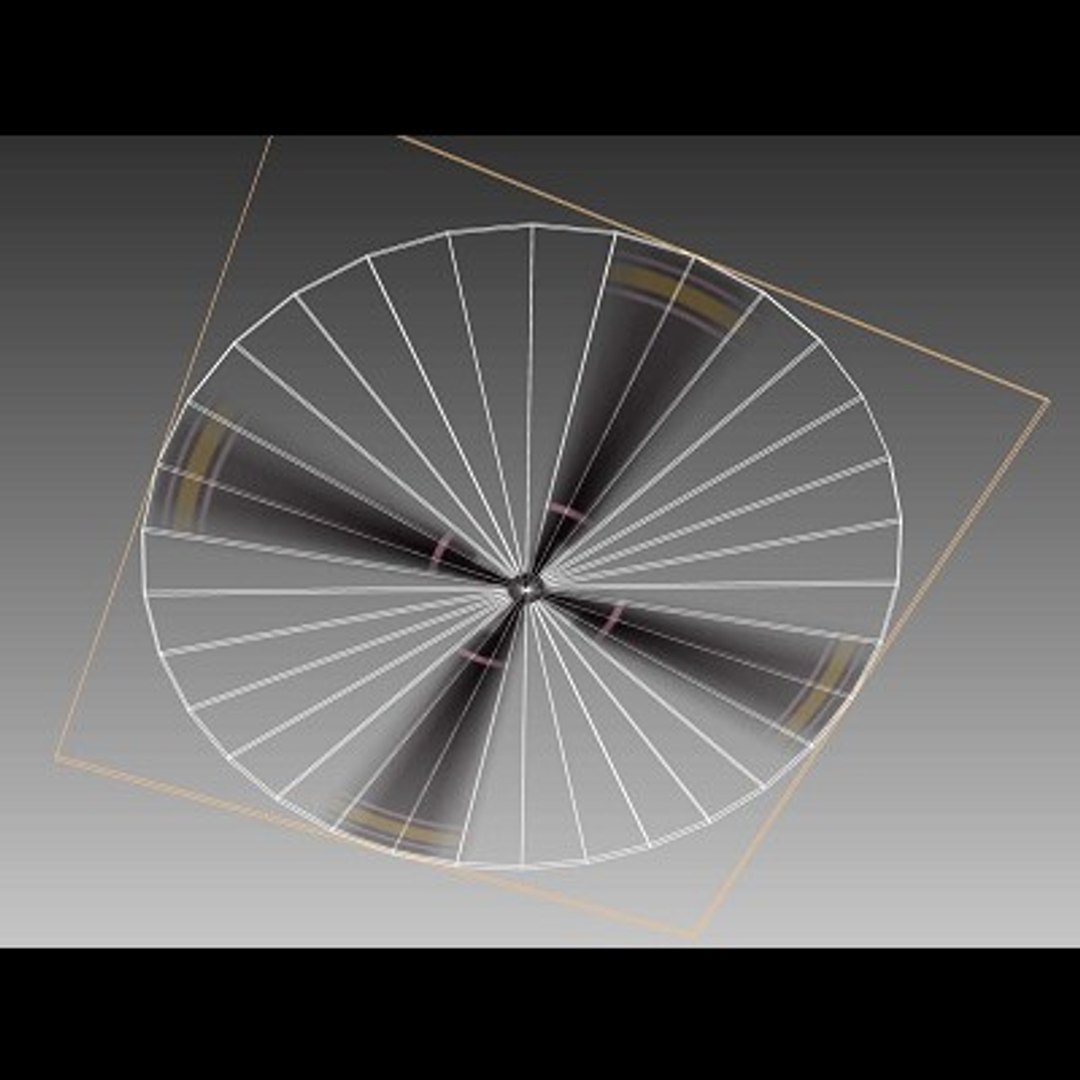
A model and a set of textures to allow you to simulate smooth motion blur for propellers or rotors. A template also provided and instructions on making your own.

Simply import the disc model, and do the following:

1) Parent the disc model to the rotor head and scale it and rotate it in to position over the real rotors or propellers. Delete or hide the real rotors or props.

2) Make sure the disc does not cast shadow unless you are raytracing. Also, on the file node turn off any anti-aliasing. Make sure the material has no reflectivity or specularity.

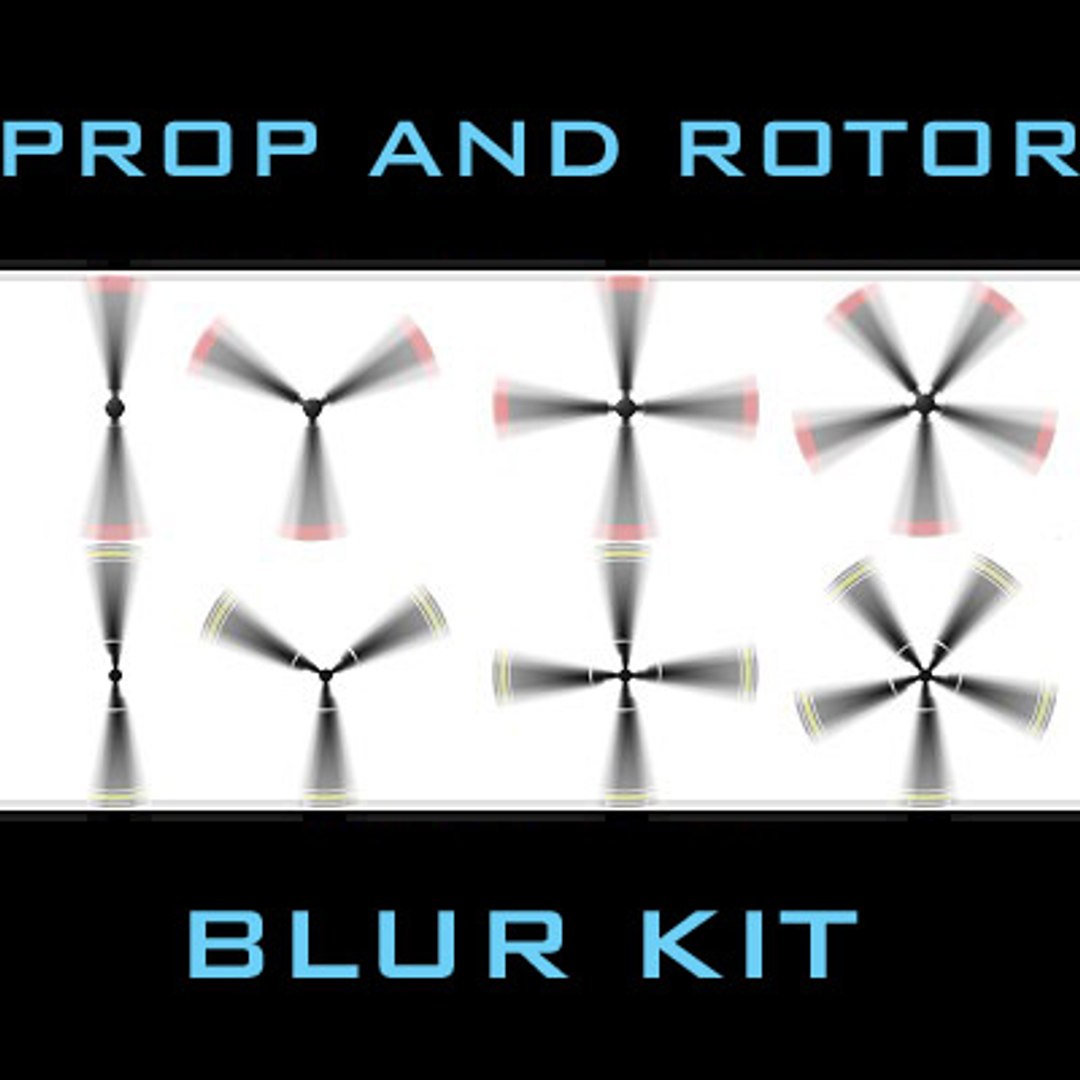
3) I’ve provided 8 different maps, basically 2 color sets for 2-5 blades.

4) If you want to make your own, modify the rotor, duplicate it about the center, and take a top render of it with the center being the hub. Radial blur this render the way you like and then simply change texture to it.

You can get quickly rendered results without heavy 3D motion blur this way. The template model is not designed to be used on the aircraft but just for generating the textures (combined with radial blur in Photoshop).

Texture

8 specific textures provided for 2, 3, 4, and 5 prop/rotor configurations. 2 color variations.

Select Enhanced License

  • $10,000 in Legal Protection (Indemnification)
  • Uncapped Legal Protection (Indemnification)
  • Waiver from injunctive relief
  • Assignable model rights
  • $1,000,000 in Legal Protection (Indemnification)
  • Waiver from injunctive relief
  • Assignable model rights
  • $250,000 in Legal Protection (Indemnification)
  • Assignable model rights
Read more about enhanced license tiers, or contact us at enterprise@turbosquid.com. Already a Shutterstock Enterprise Customer? Contact your Shutterstock Sales Support Agent to talk about adding 3D.

About Conversion Requests

To submit a conversion request for a purchased asset, please complete our Conversion Request Form.

If you have not yet purchased a model, please review our Documentation about Conversions to learn about what limitations you may encounter with a conversion.

For any additional questions about a model’s suitability for conversion, please contact TurboSquid Support.

Loading...